Creating Jobs
Creating Jobs
How to Add a Job
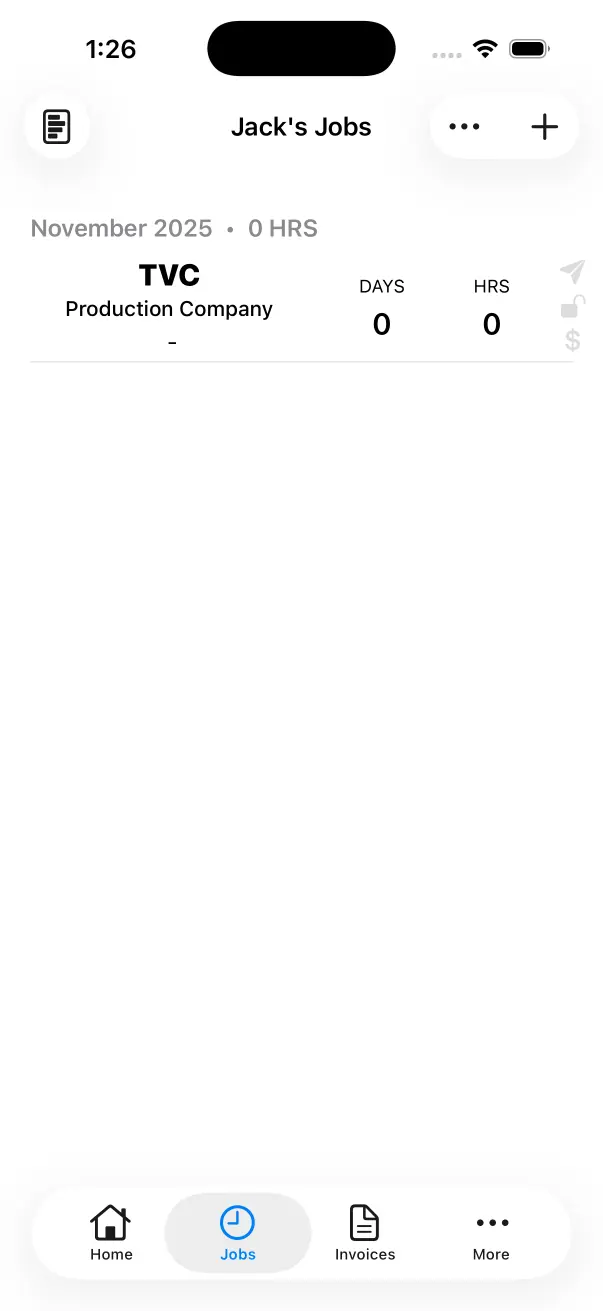
Go to the Job List
Tap the Jobs Tab at the bottom. This will take you to the Job List for the Current Crew Member.
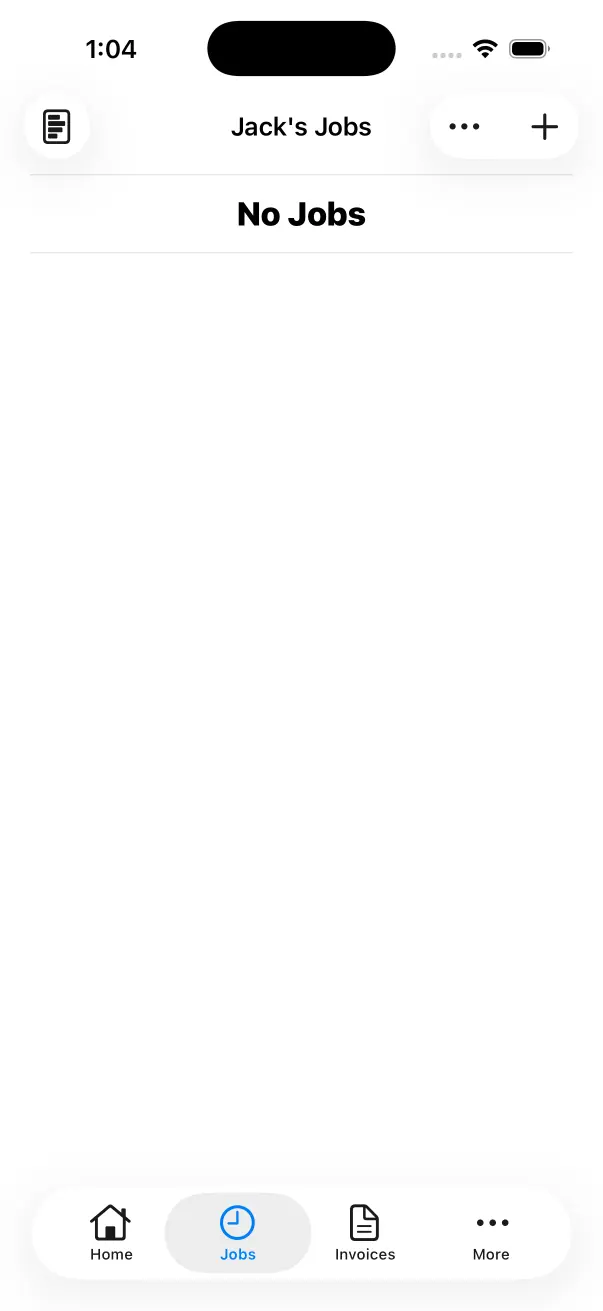
Tap the ‘Add Job’ Button
Tap the ’+’ Button in the top right. This will show the Add New Job Screen. This is where you set the Job Name, Production Company, Role, Department, Rate and Job Settings.
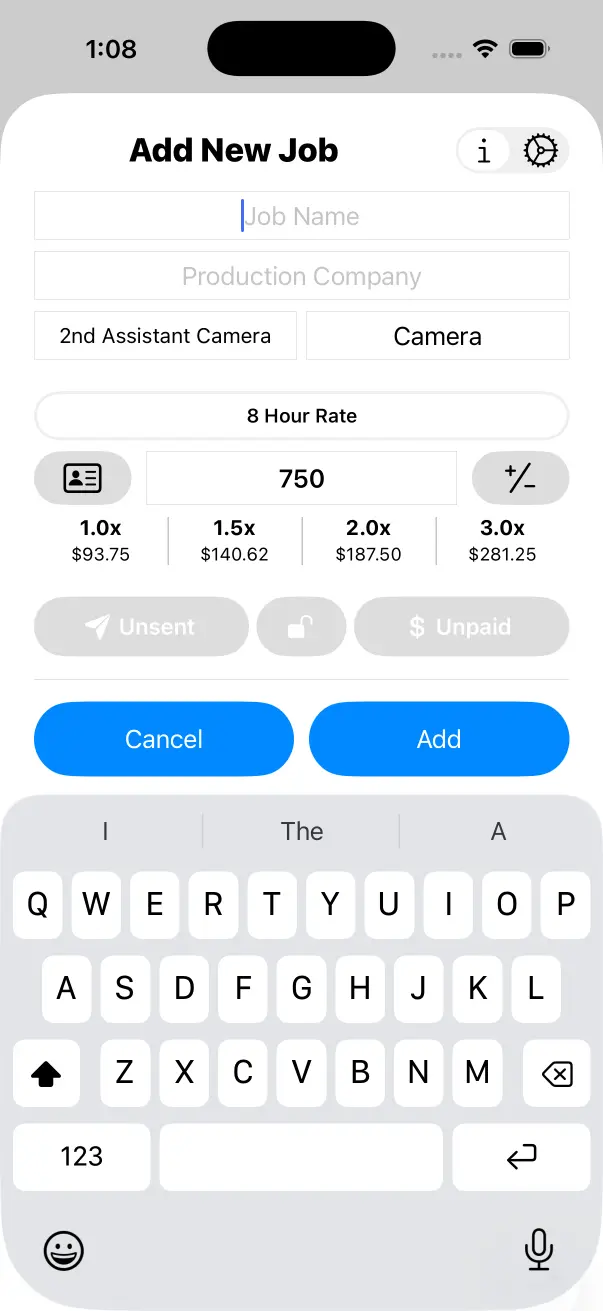
Enter Job Name and Production Company
You must enter a Job Name. Select a Production Company from the list. Tap the ’+’ Button in the toolbar to Add a New Production Company.
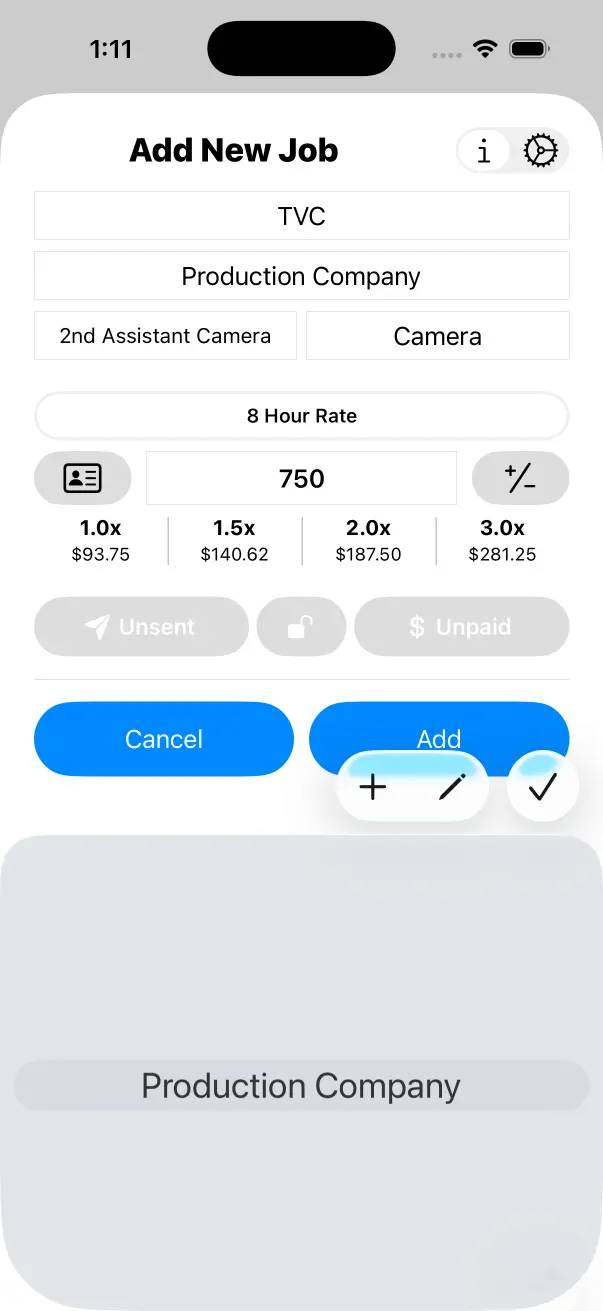
Production Companies are referred to as Clients in the Invoice Section of Crew Call.
Modify Role, Department or Rate If Required
These will be pre-filled based on the defaults in your Crew Profile. The most common value to modify is your rate as it’s likely you negotiate this on a job to job basis.
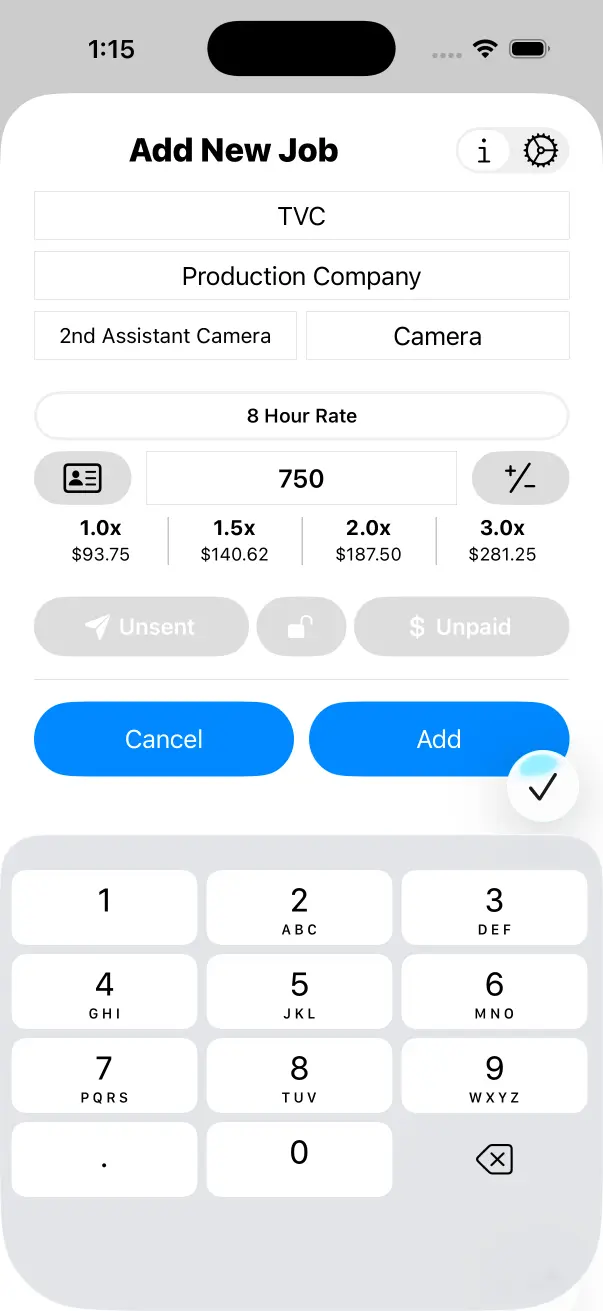
Add Job
Tap the Add Button in the bottom right. This will create a New Job and add it to the Job List for the Current Crew Member.