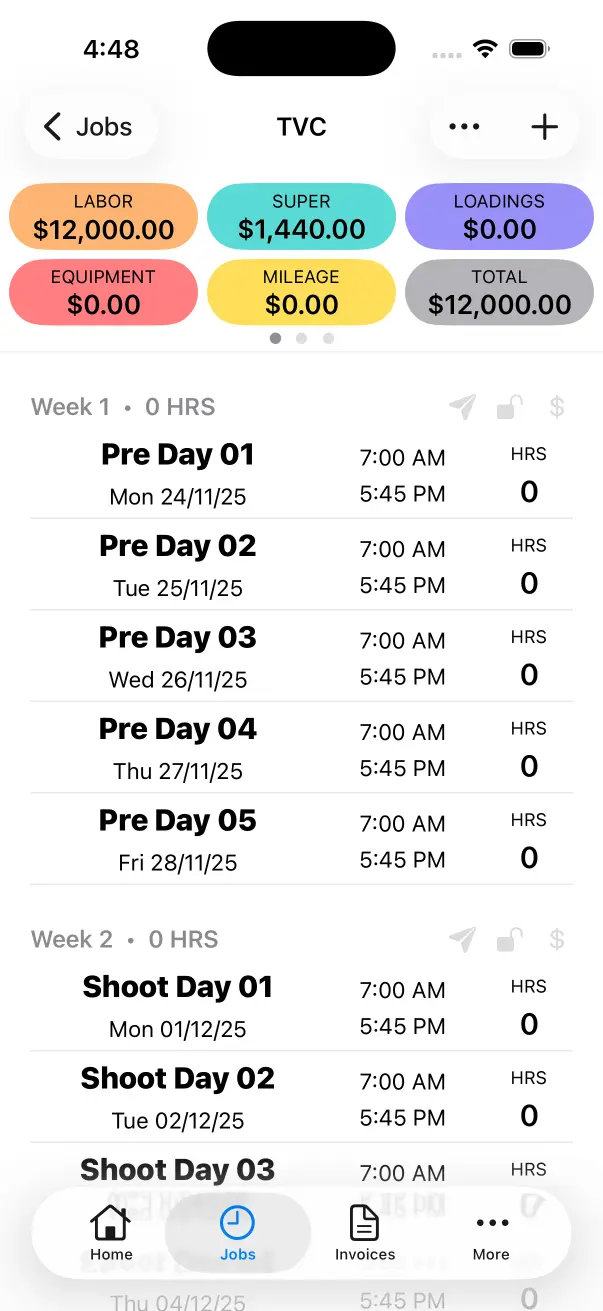
Creating Work Days
There a two ways to create Work Days in Crew Call, Single and Multiple.
Single Work Days
This is a great approach when you are logging Work Days as you go. You open Crew Call when you’re on-set and create a Shoot Day.
Multiple Work Days
Many crew prefer to log their Work Days in advance. This option is ideal when you want to setup an entire Job in one go or if you are creating Work Days one week/multiple weeks at a time.
Add a Single Work Day
Go to the Work Day List
Tap a Job in the Job List. This will load the Work Day List for that specific job.
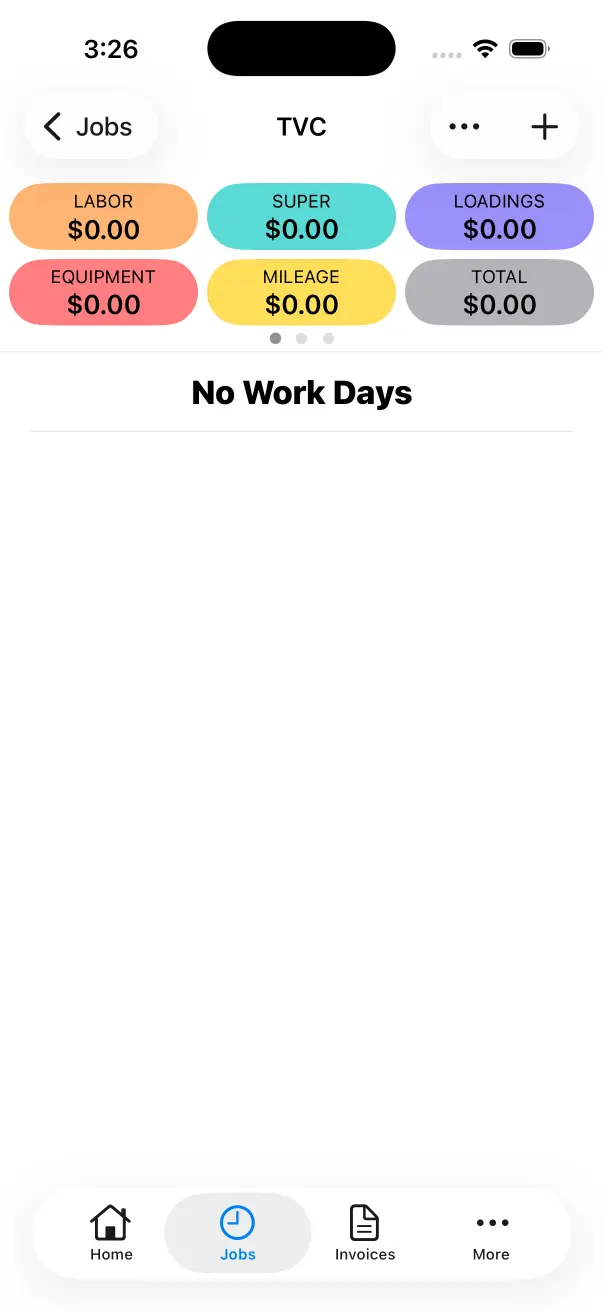
Tap the ‘Add Work Day’ Button
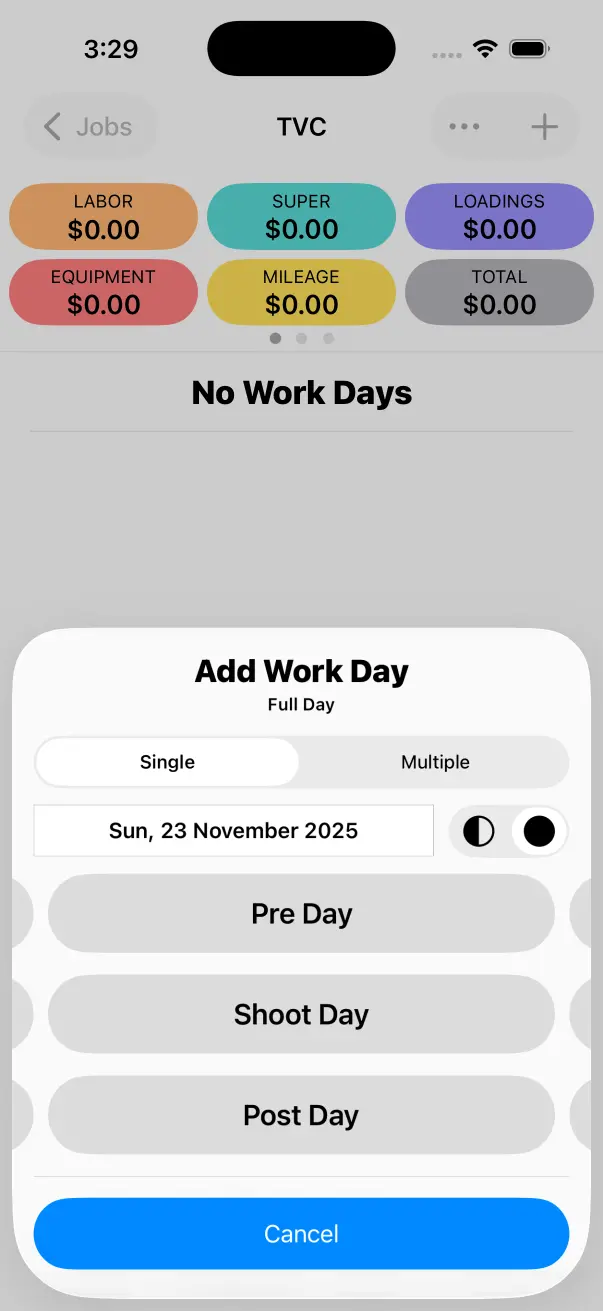
Tap the ’+’ Button in the top right. This will show the Add Work Day Screen. Make sure that Single is selected at the top, this is used to create a Single Work Day.
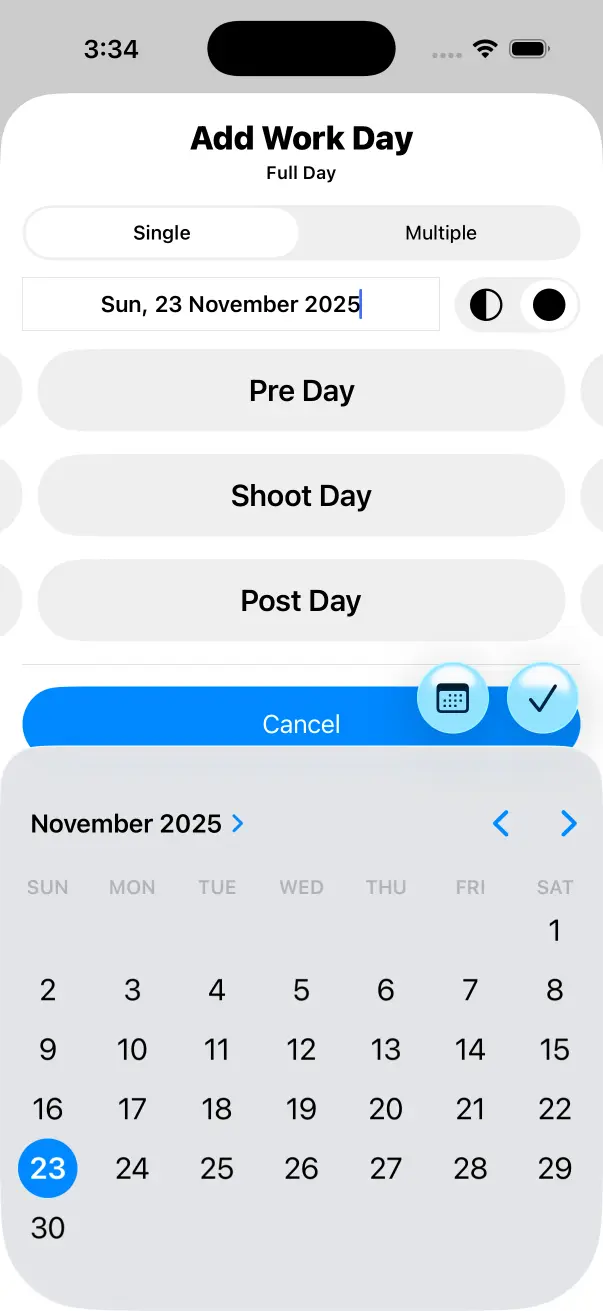
Select the Date
Tap the Date up the top. This will open the Date Selection Popup. This is the date that will be used when creating the new Work Day.
Select ‘Half Day’ If Required
By default Work Days will be Full Days. If you are logging pre-production you can create a Half Day. This will enable your Half Day Rate for the new Work Day.
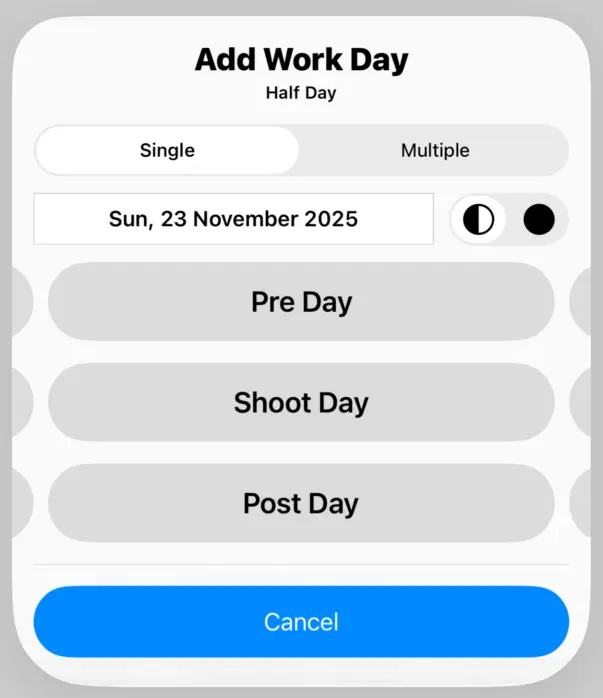
Swipe to Change Presets
Swiping on Pre Days, Shoot Days or Post Days will change the Date Title for the new Work Day. Choose from a number of commonly used Date Titles.
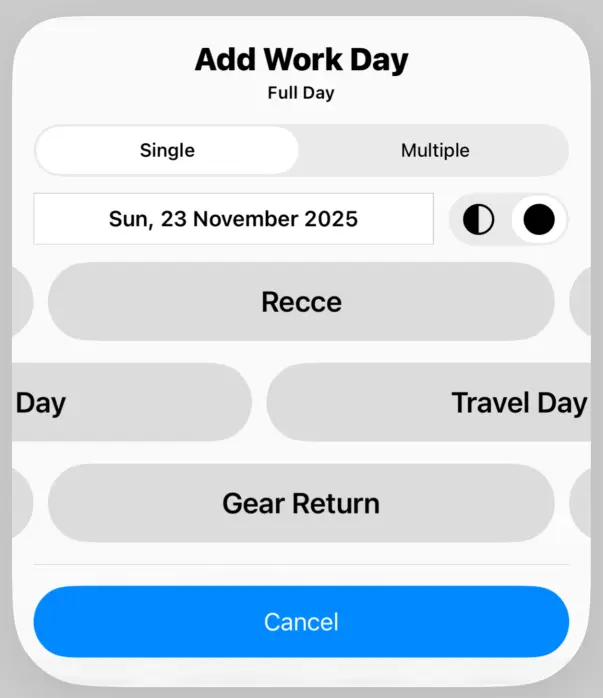
Add a Work Day
Tap on the Date Title Preset and a new Work Day will be created. You will return to the Work Day List.
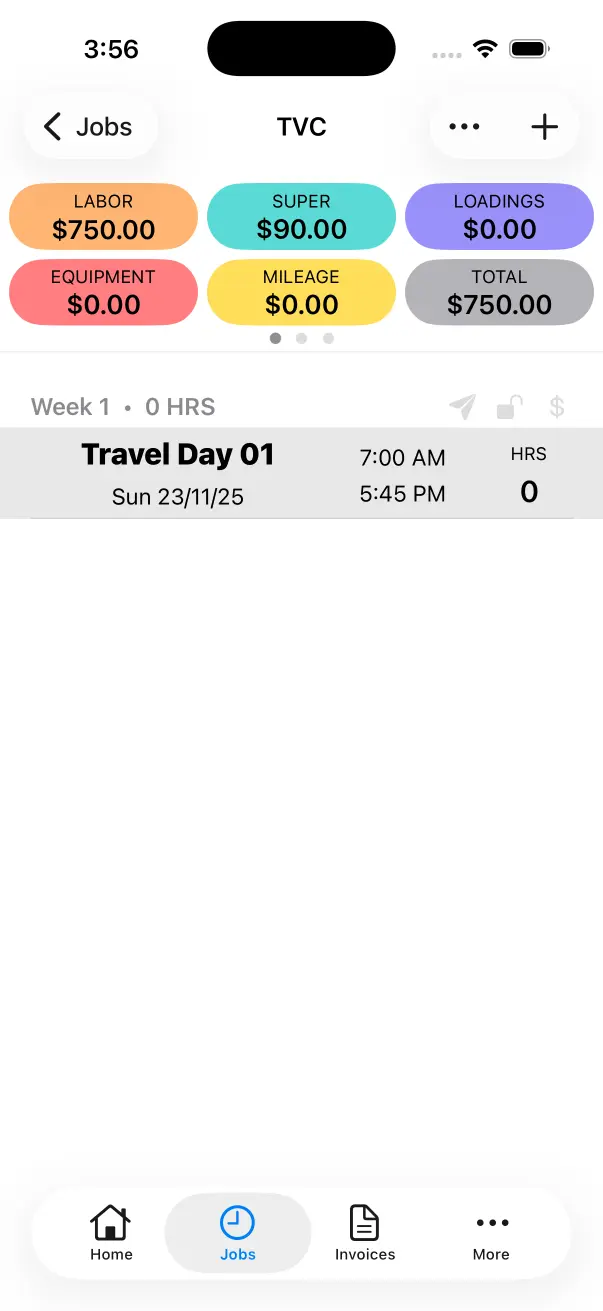
Add Multiple Work Days
Go to the Work Day List
Tap a Job in the Job List. This will load the Work Day List for that specific job.
Tap the ‘Add Work Day’ Button
Tap the ’+’ Button in the top right. This will show the Add Work Day Screen. Make sure that Multiple is selected at the top, this is used to create Multiple Work Days.
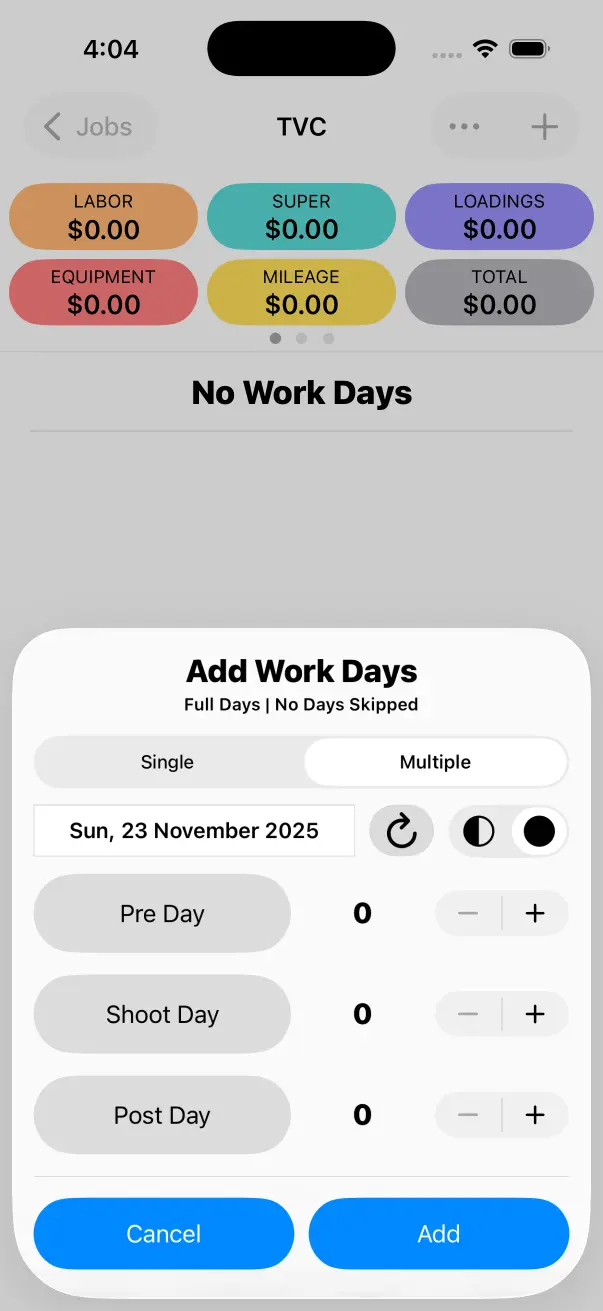
Select the Date
Tap the Date up the top. This will open the Date Selection Popup. This is the start date that will be used when creating Multiple Work Days. Each time a new Work Day is created the date will increment, creating a sequence of new Work Days.
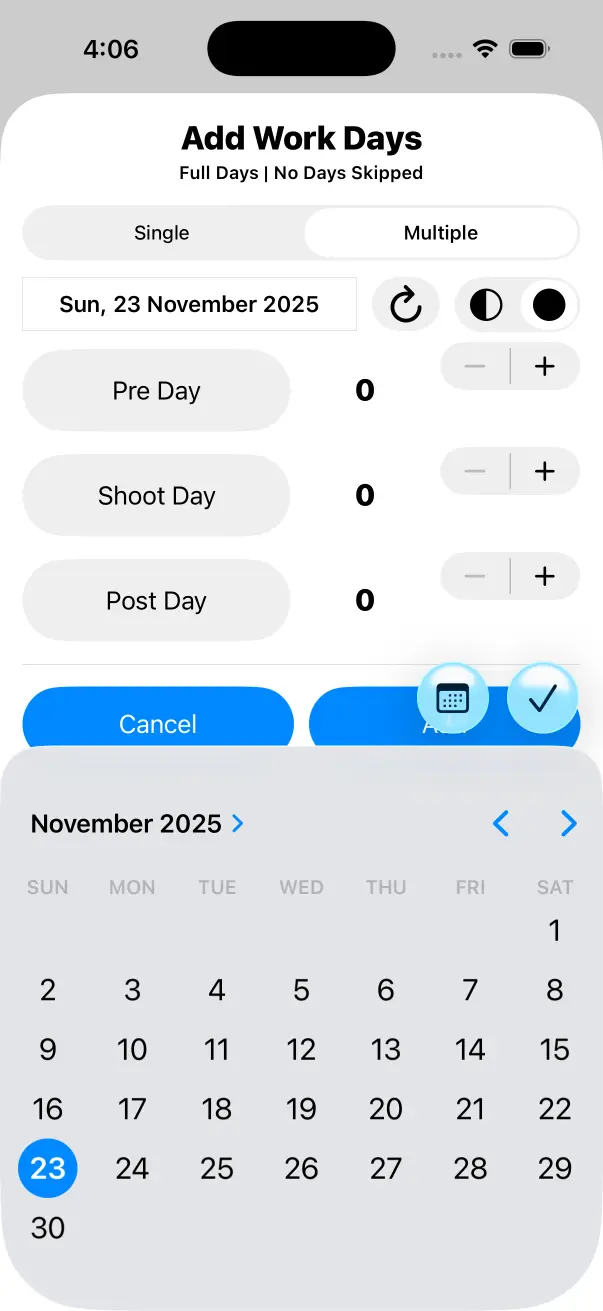
Skip Days
As Work Days are created in a sequence, sometimes you may wish to skip certain days. For example, you might be creating a 3 Week Job that shoots Mon-Fri, rather than creating three seperate weeks, you can create 15 Work Days at once and skip the weekends.
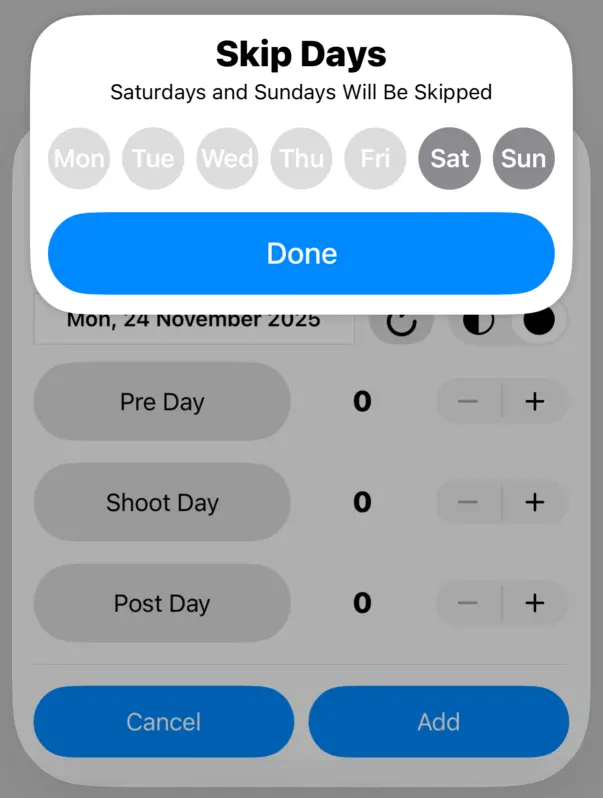
Select ‘Half Day’ If Required
By default Work Days will be Full Days. If you are logging pre-production you can create a Half Day. This will enable your Half Day Rate for the new Work Day.
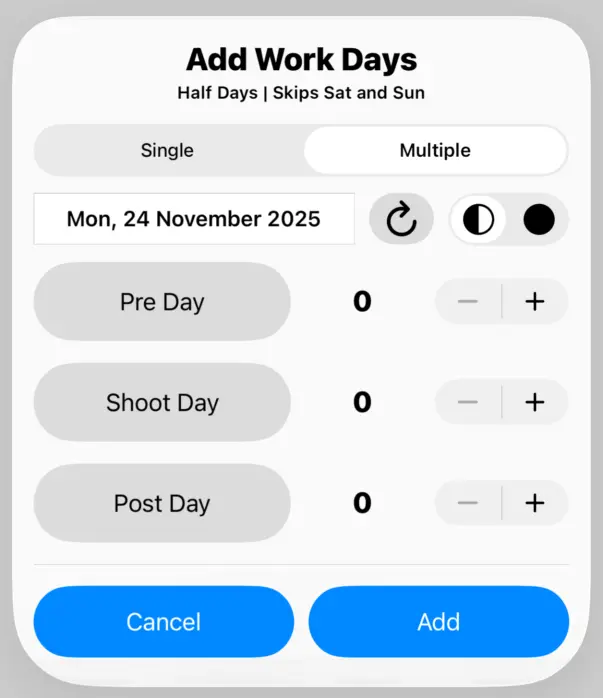
Tap to Change Presets
Tapping on Pre Days, Shoot Days or Post Days will change the Date Title for the new Work Day. Choose from a number of commonly used Date Titles.
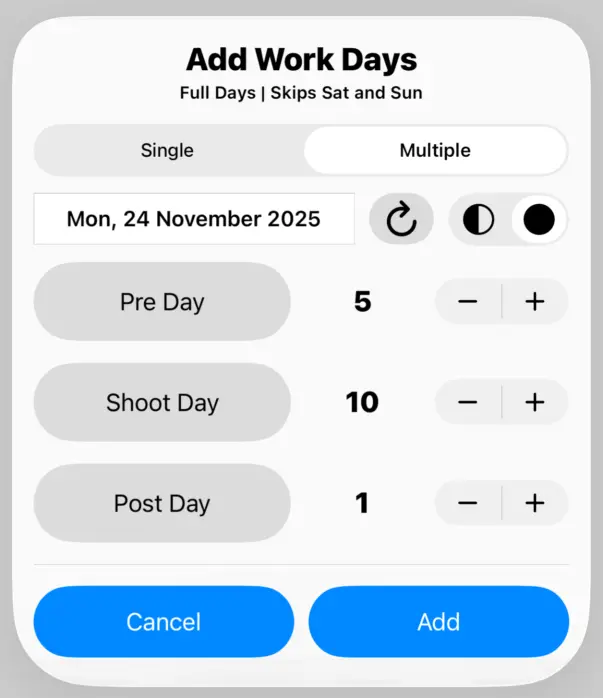
Add Multiple Work Days
Tap on the Add Button and a sequence of new Work Days will be created. You will return to the Work Day List.