Equipment
Logging Equipment
Tap the Equipment List to log gear that was used on the current Work Day.
Equipment Items are organised by category and can be added and edited via the Home Tab → Crew Profile → Equipment List.
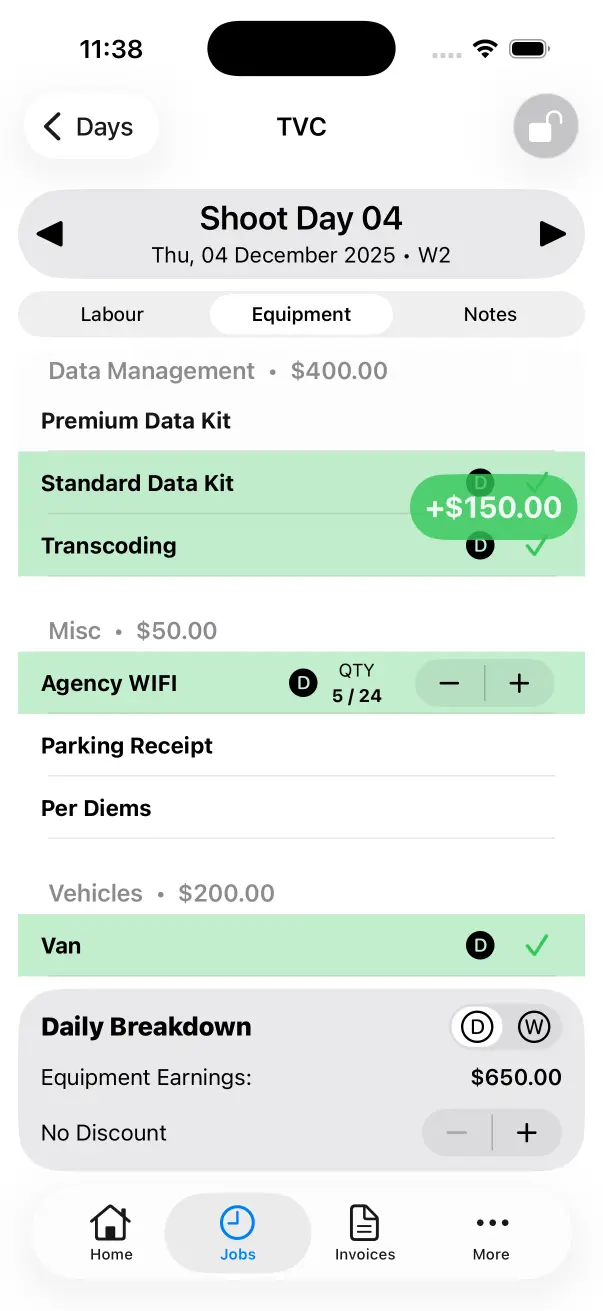
Equipment Items can have varying quantities. Sometimes you own a single unit and sometimes you have multiple units of the same piece of gear.
Single Equipment Items
These are toggled on/off with a tap.

Multiple Equipment Items
These are modified with the stepper. Tap the stepper to increment or reduce the number of units that have been used.

Day Rate or Weekly Rate
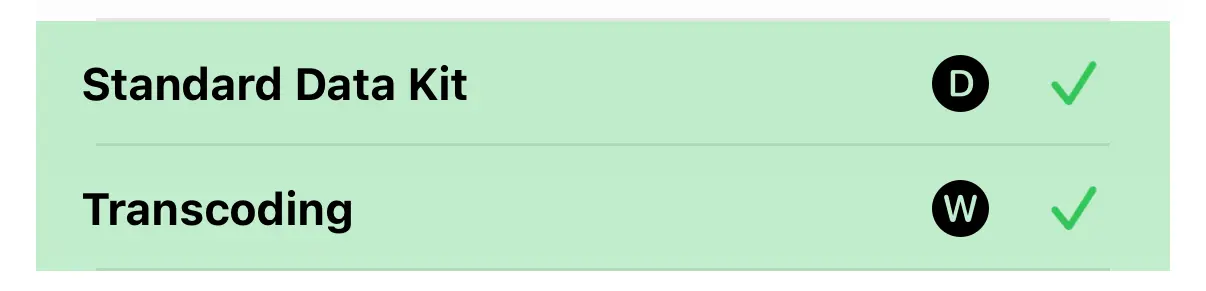
Each Equipment Item displays a D or a W next to it.
D indicates that the Day Rate is being used.
W indicates that the Weekly Rate is being used.
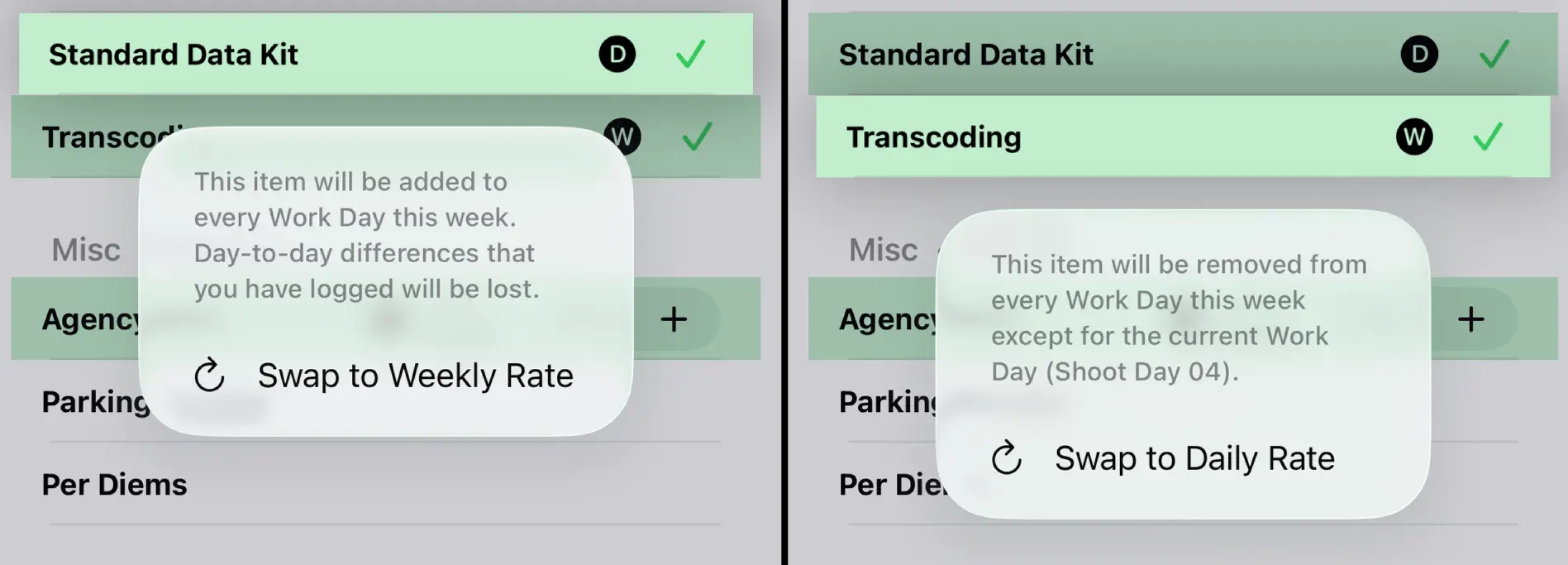
Tap and Hold on an Equipment Item to swap between using a Day Rate and a Weekly Rate. When using a Weekly Rate, the Work Week will be calculated using based on More Tab → Settings → First Day of Week.
Discounts
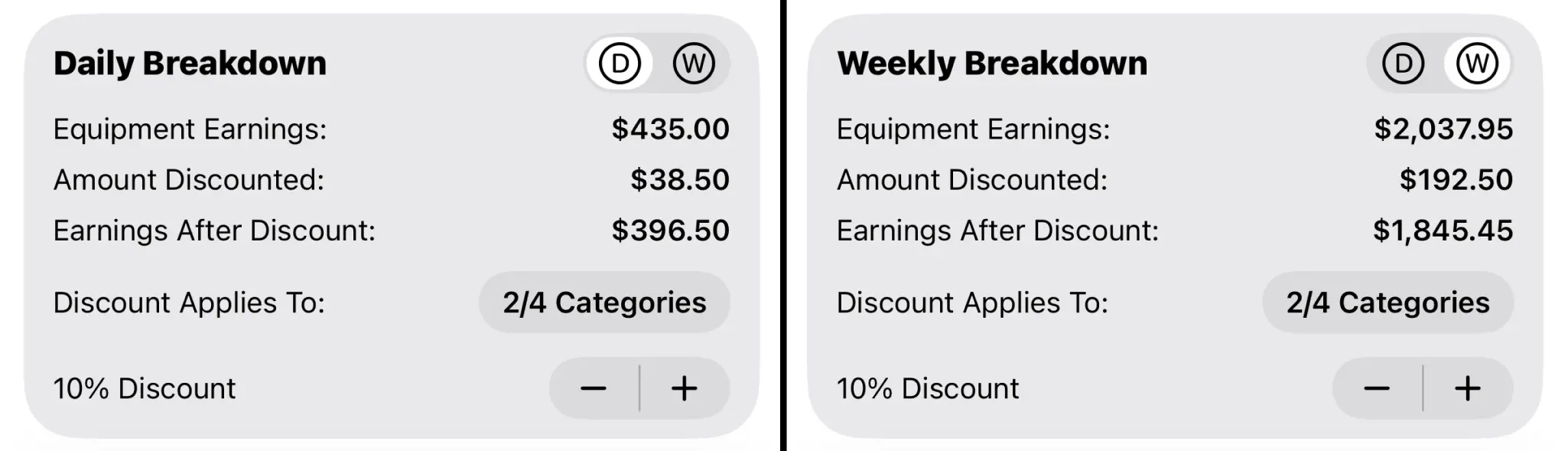
The bottom section displays the Job Discount. This as a global discount that will be applied to every Work Day created for this Job.
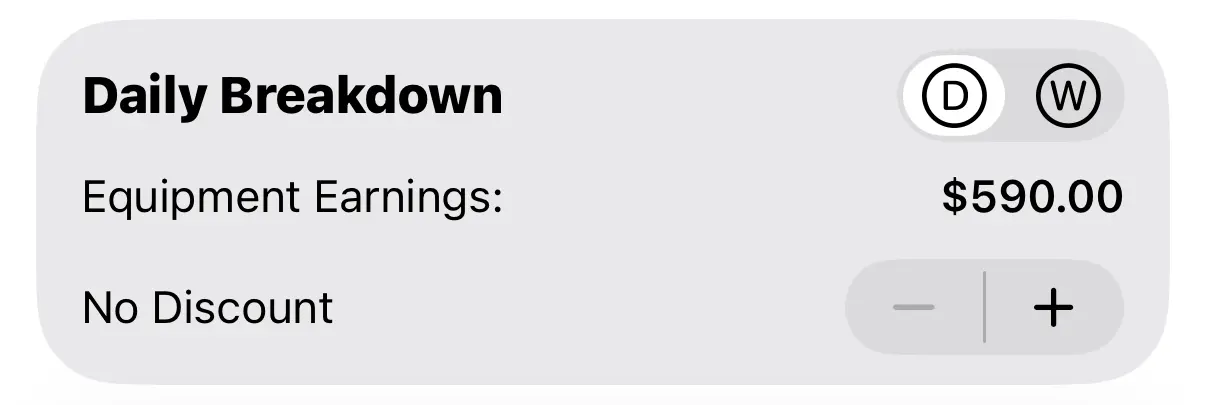
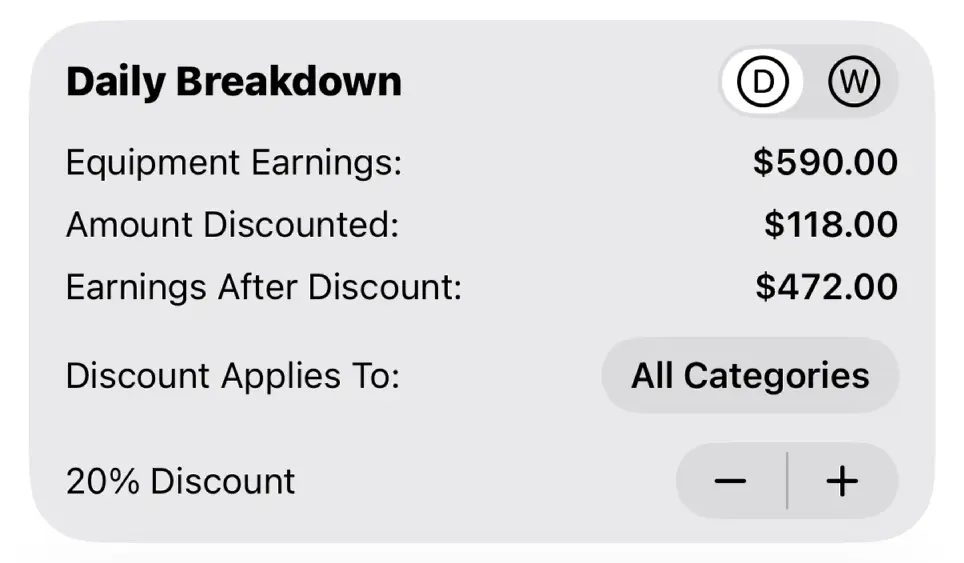
Tap the +/- Stepper to increase or reduce the discount percent. The amount discounted and your earnings after discount will be automatically calculated and displayed.
Discount Categories
By default the Job Discount will apply to all Equipment Categories. This can be changed so that the discount is only applied to Equipment Items in certain categories.
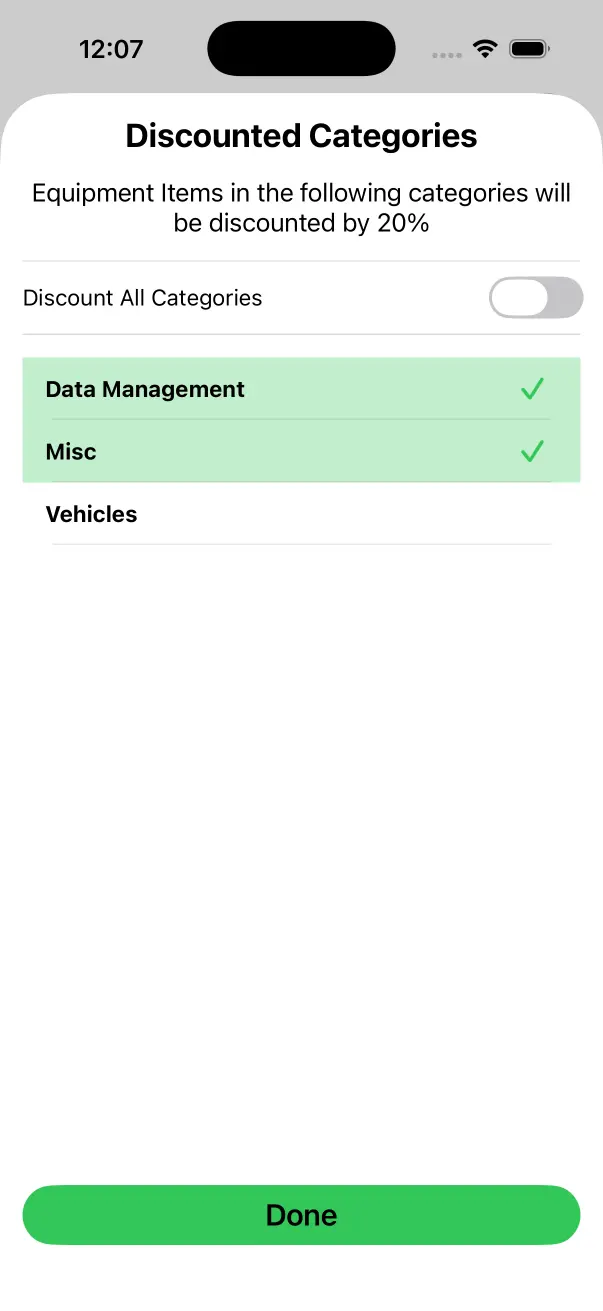
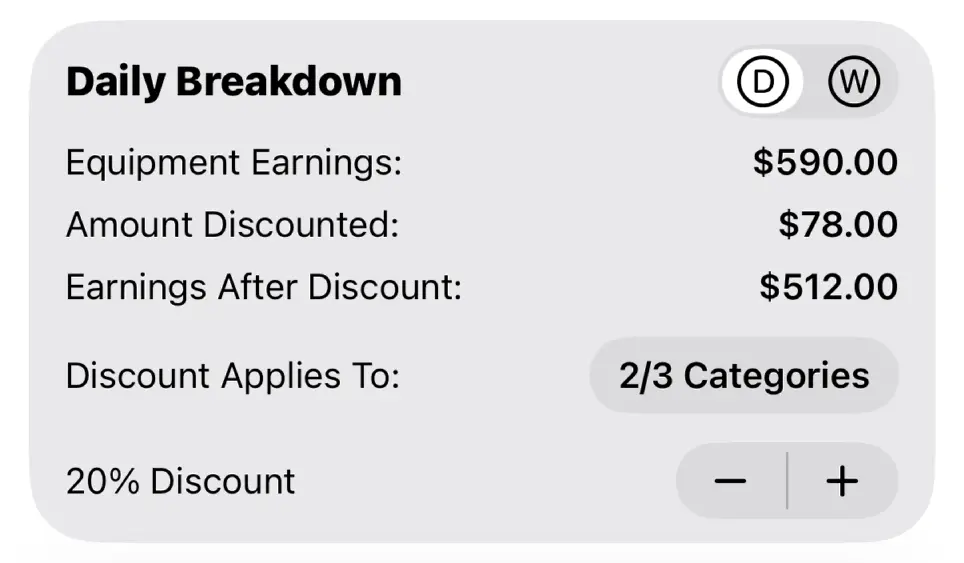
This is useful if you need to apply a discount to everything except for certain Equipment Items. In the example above, all of the Data Management and Misc Equipment is discounted but we do not apply any discount to Vehicles.
Equipment Override
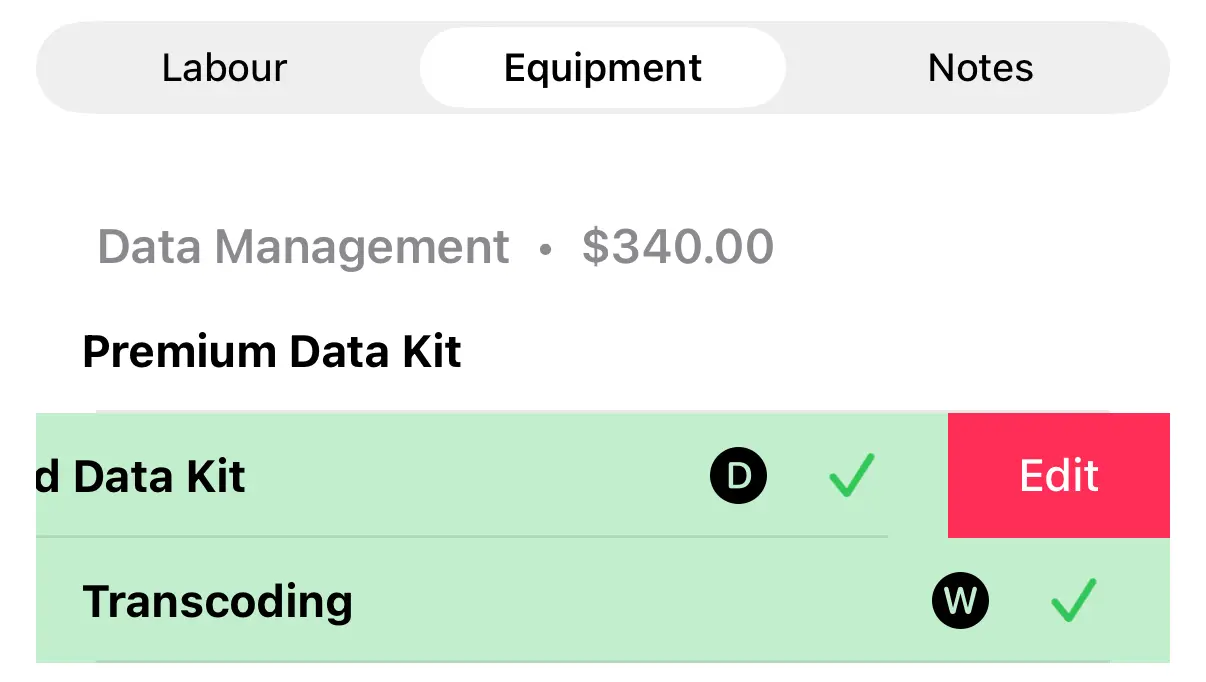
Swipe Left on any Equipment Item and select Edit to apply an Equipment Override.
Equipment Override allows you to change the Day Rate or Weekly Rate for a specific Equipment Item without impacting its price on other Jobs.
Use the text field to change the price of an Equipment Item. If you need to Calculate by Percentage you can use the +/- Stepper that is positioned above the keyboard.
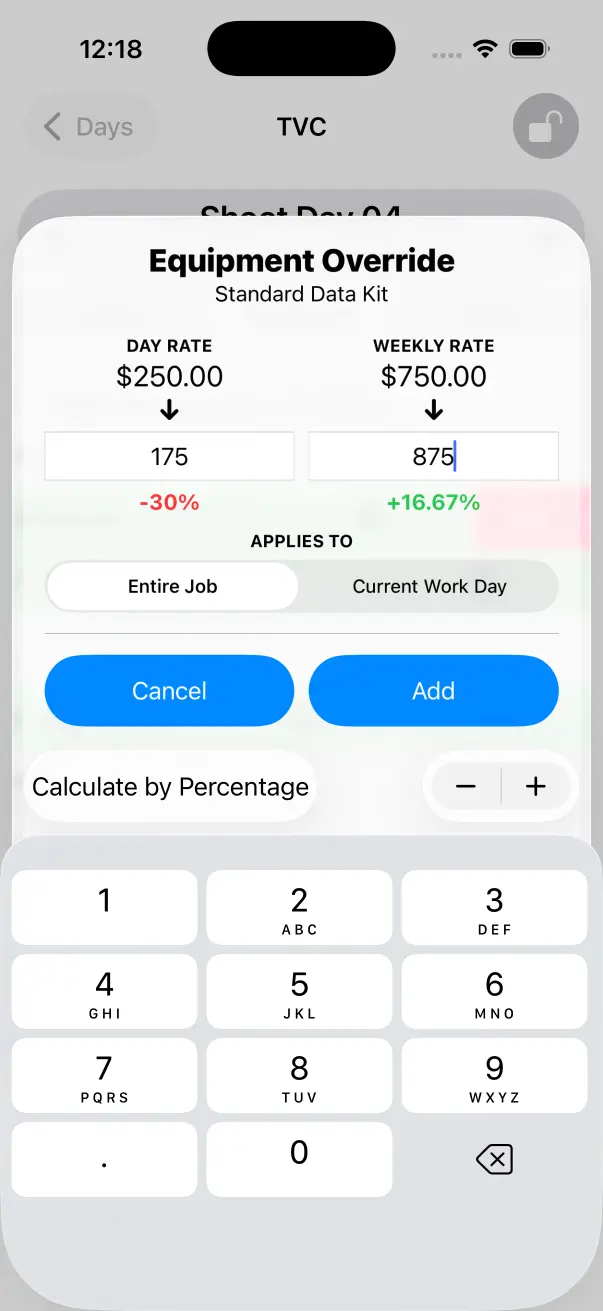
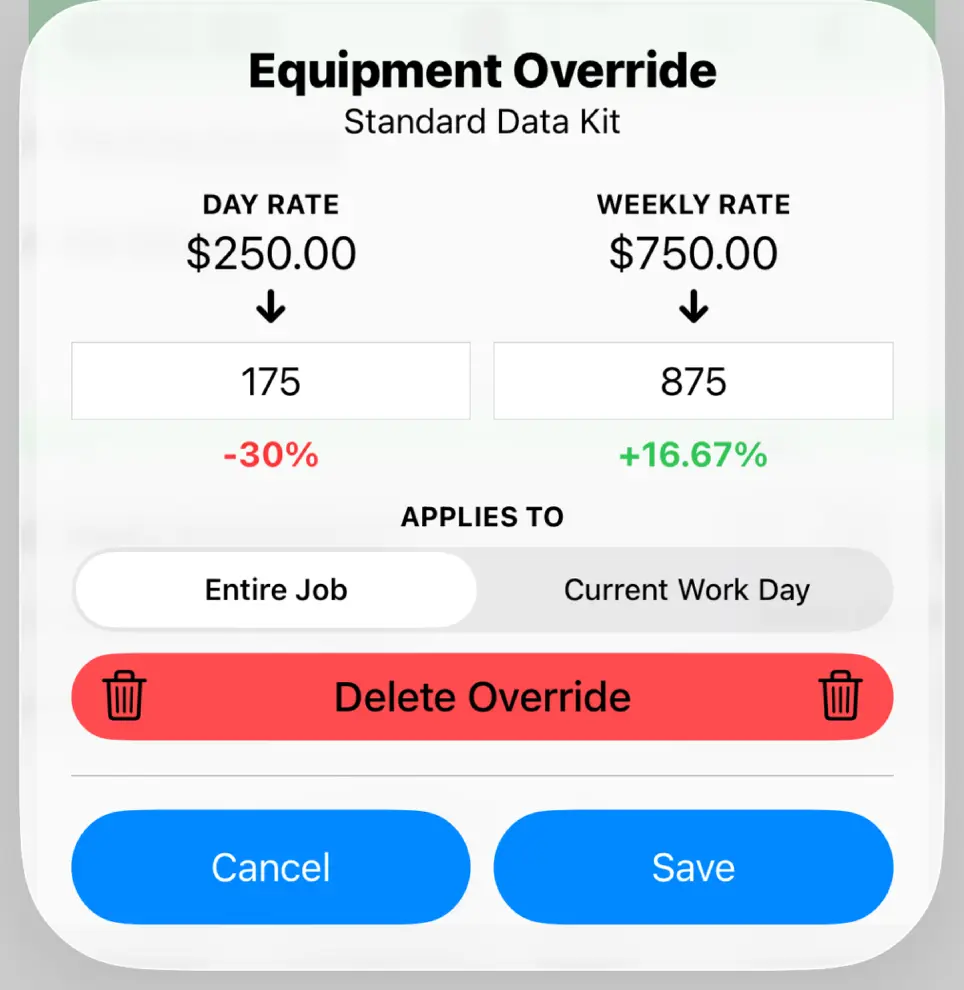
Equipment Overrides can be applied to the Entire Job or just the Current Work Day.
Use Entire Job if the discount or surcharge you wish to apply needs to be used on every Work Day logged for this Job.
Use Current Work Day if the discount or surcharge will change from day to day. This is useful for logging expenses which is detailed below.

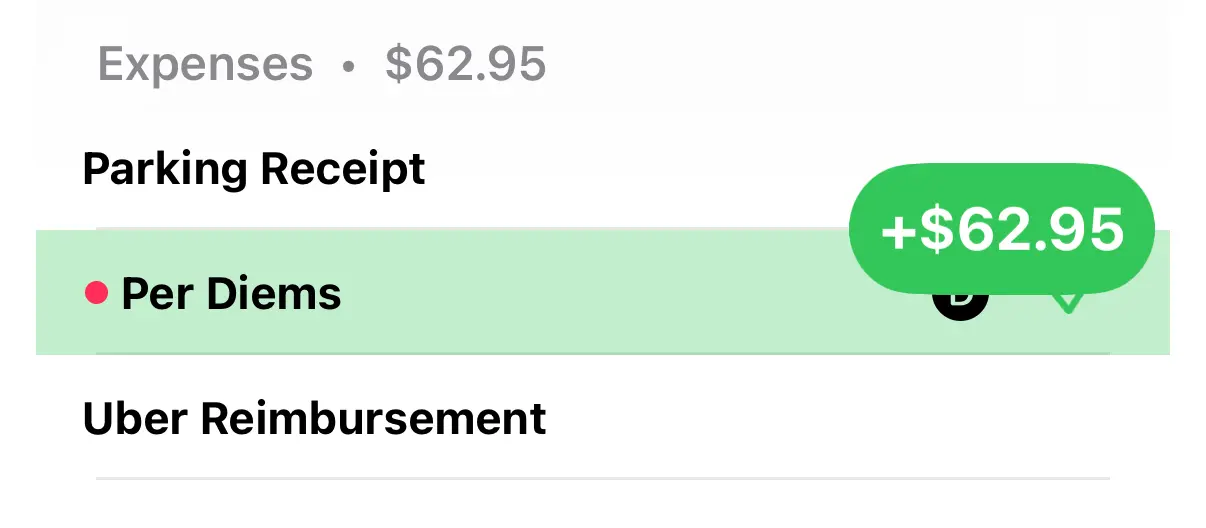
There will be a pink dot next to the Equipment Item when an Equipment Override is applied.

To remove an Equipment Override, Swipe Left and select Edit, then tap Delete Override.
Expenses
There is no offical support for expenses within Crew Call but you can achieve similar functionality using Equipment Items and Equipment Overrides.
Many crew will setup an Equipment Category called Expenses. They will then add various Equipment Items that match common expenses, these have a Day Rate of $0.00.
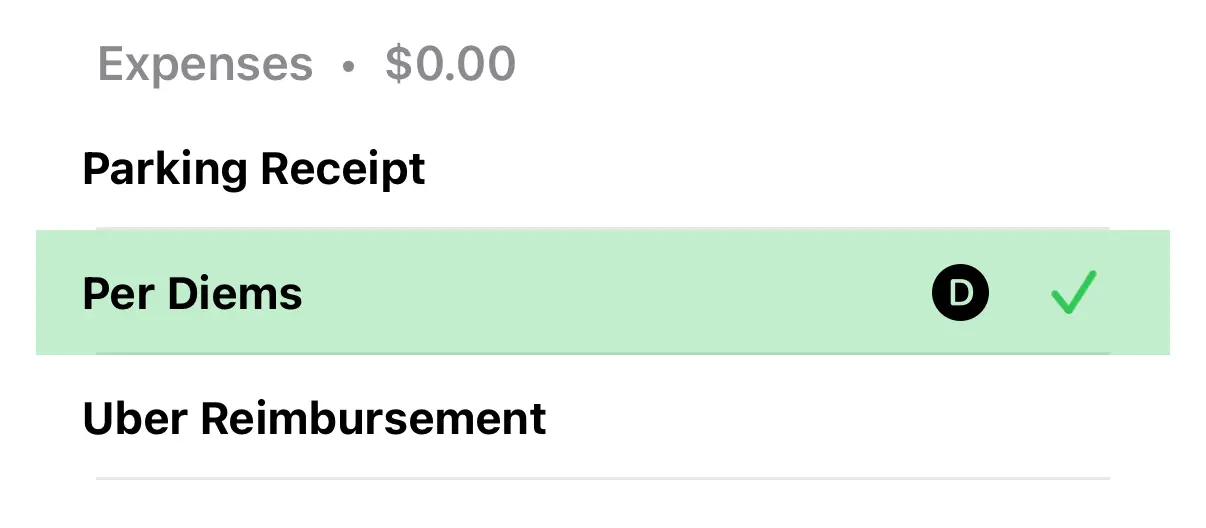
When you log Per Diems you will need to apply an Equipment Override and set it’s Day Rate to the amount of Per Diems you are entitled to for that day.
It’s important to make sure you select Current Work Day when you create the Equipment Override as the amount you charge for Per Diems will differ from day-to-day.
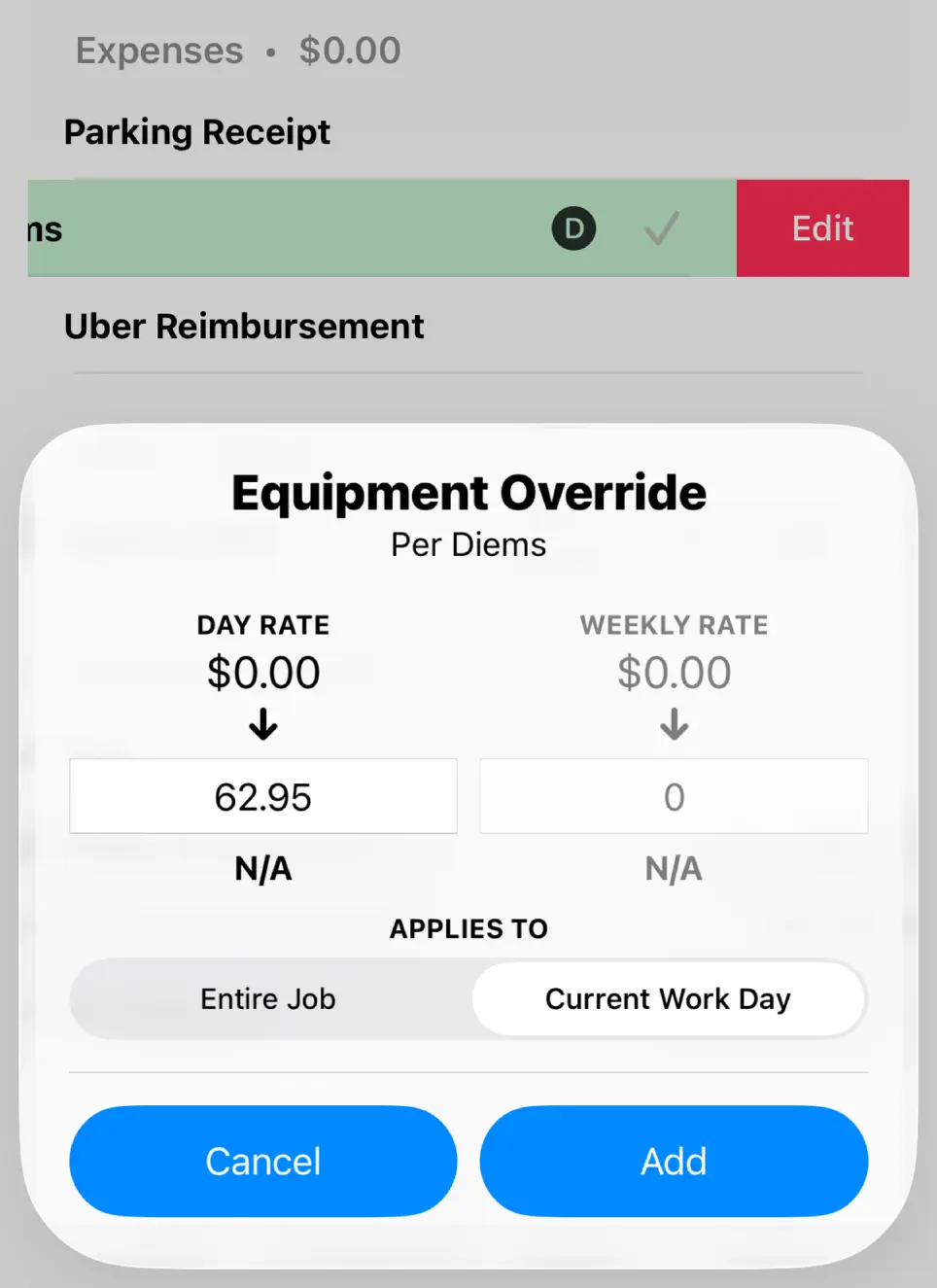
Once the Equipment Override has been created you will be charging the correct amount for the expense. This process is repeated for every day that you need to be reimbursed for an expense.
Daily/Weekly Breakdown
Switch between a Daily Breakdown and Weekly Breakdown using the toggle in the top right. This is useful to keep track of how much Equipment Income you are earning each day or week.