Locations
Summary and Settings
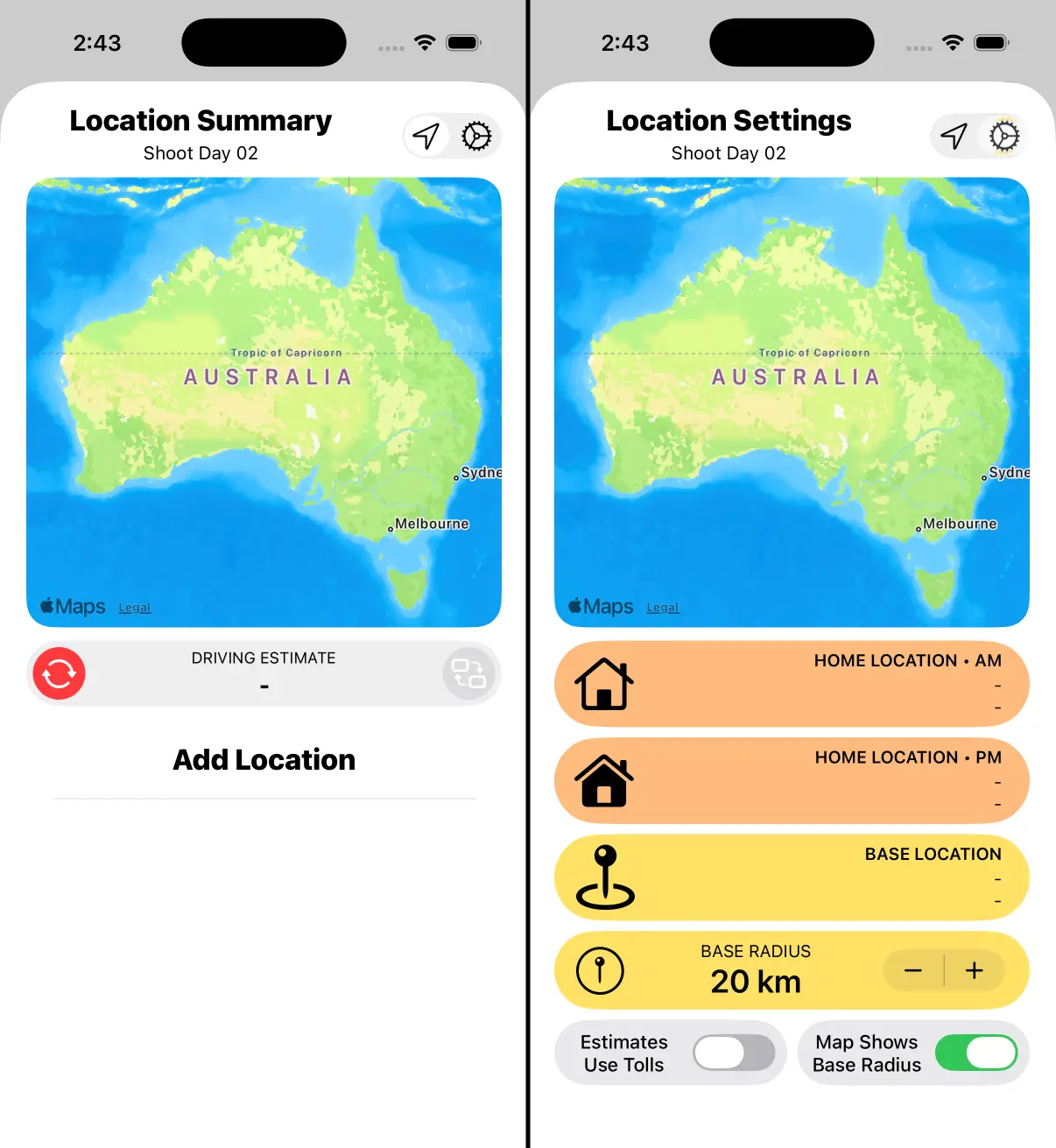
Location Summary is used to Add Locations.
Location Settings is used to set Home Locations and a Base Location.
Driving Estimates calculate time and mileage between your Home Location and any locations that you log. Below we’ll show you how to get setup.
Default Home Location
When using Locations for the first time, it’s best to set your Default Home Location.
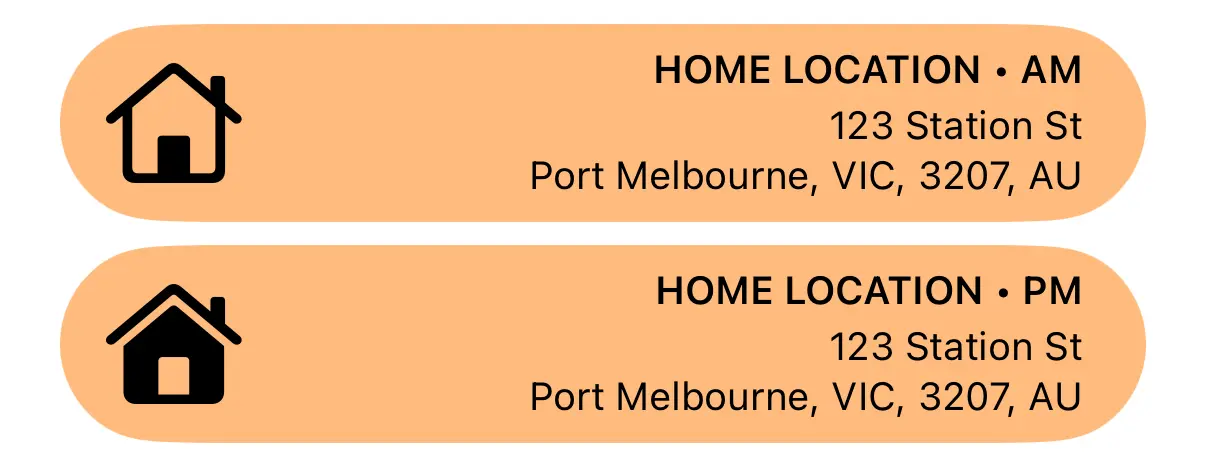
Tap ‘Home Location • AM’
This will open the Add Location Screen.

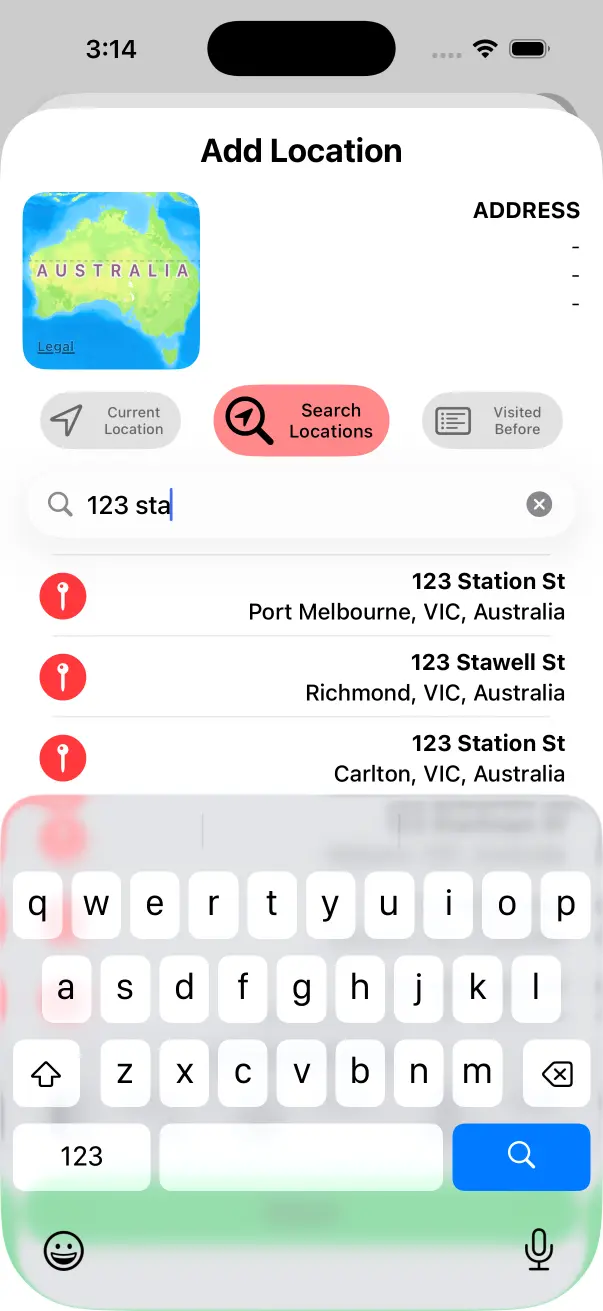
Type in Home Address
This should be the location where you normally wake up and where you go home to in the evening. Crew Call will use this to calculate the distance between Home and any Shooting Locations that you log.
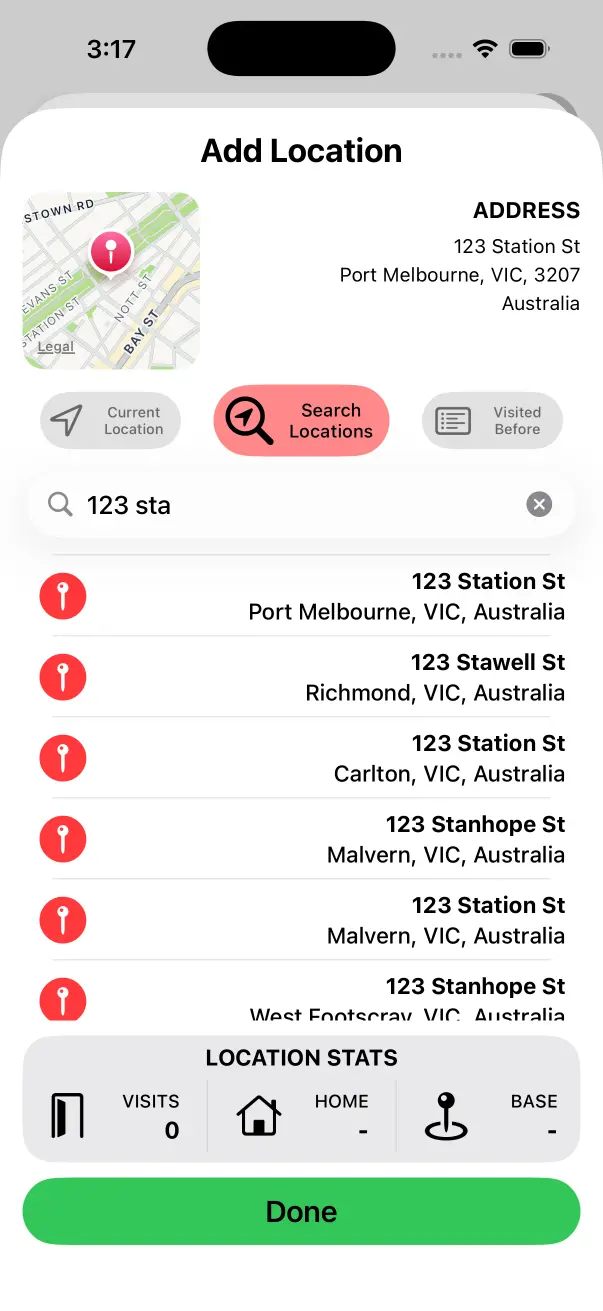
Select the Home Address
Select your Home Location from the list of addresses and tap the Done Button at the bottom.
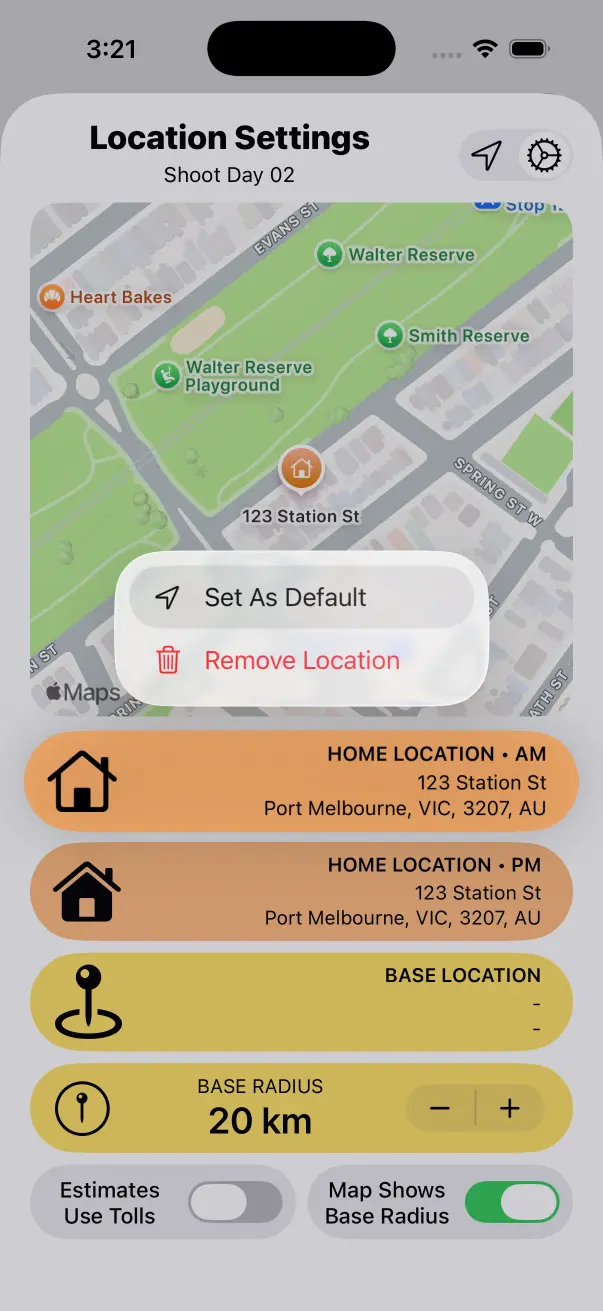
Set as Default
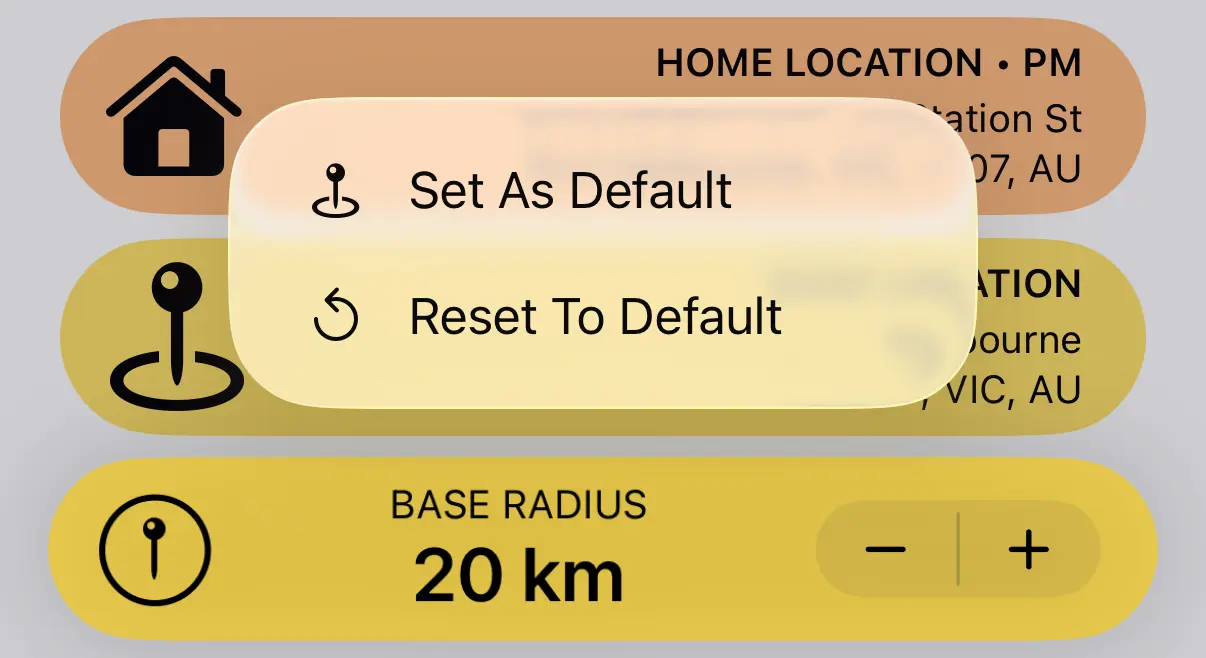
Tap and Hold on Home Location • AM and select Set As Default. Any new Work Days that you create from this point forward will now have the Home Location set automatically.
Default Base Location
When using Locations for the first time, it’s best to set your Default Base Location.
Tap ‘Base Location’
This will open the Add Location Screen.

Type in City Address
This should be the location of the main city where you normally work. Crew Call will use this to calculate if any Shooting Locations fall outside of the zone.
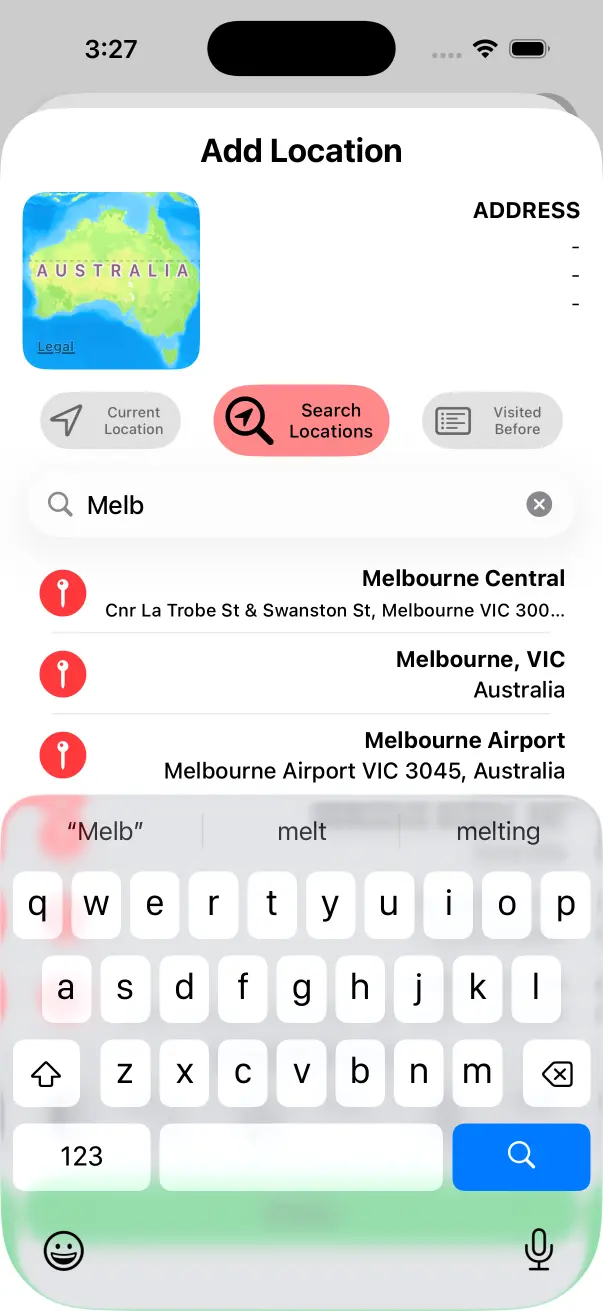
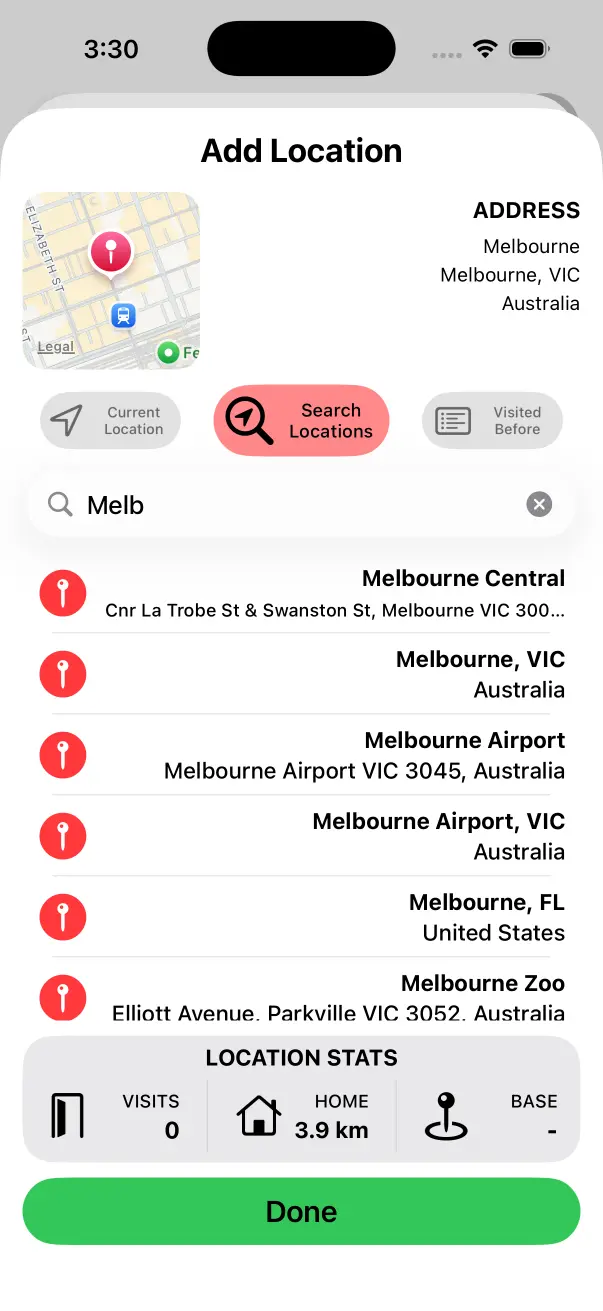
Select the City Address
Select your Base Location from the list of addresses and tap the Done Button at the bottom. It doesn’t need to have a full street address, just the city is fine.
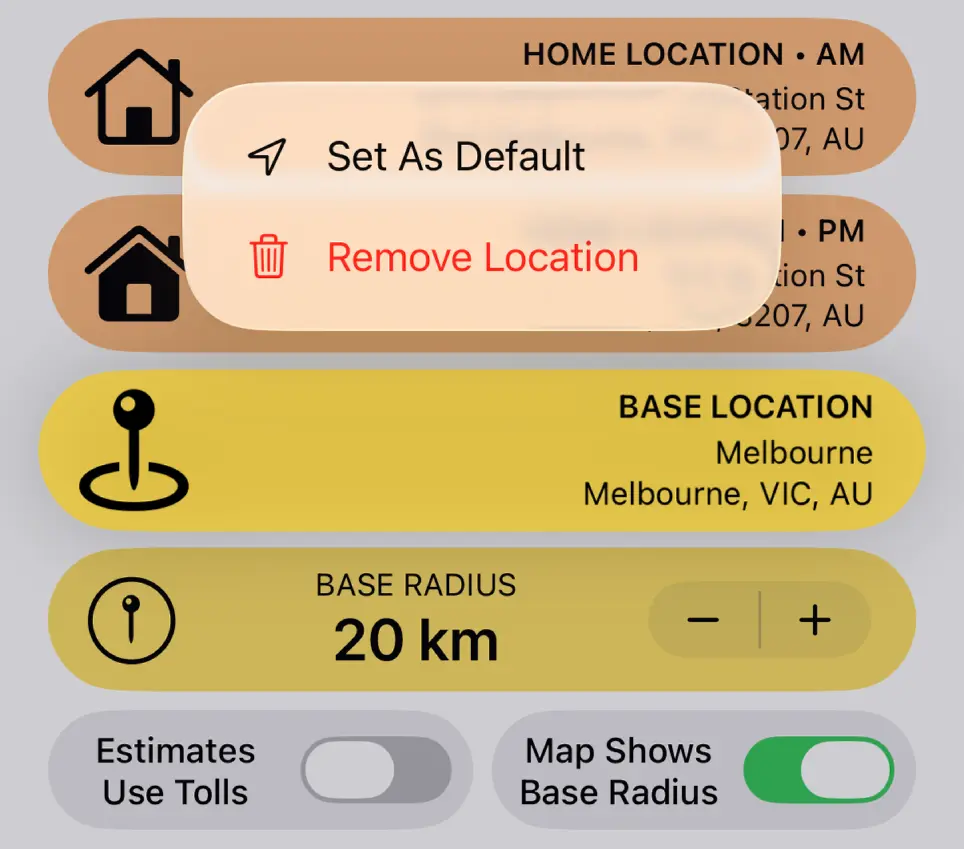
Set as Default
Tap and Hold on Base Location and select Set As Default. Any new Work Days that you create from this point forward will now have the Base Location set automatically.
Home Locations
By default, Home Location • PM will be identical to Home Location • AM. The only time you need to change these is when you’re doing an away job.
Change the Home Location to be your accomodation when working away and Crew Call will calculate your Driving Estimates accordingly.
Base Location and Radius
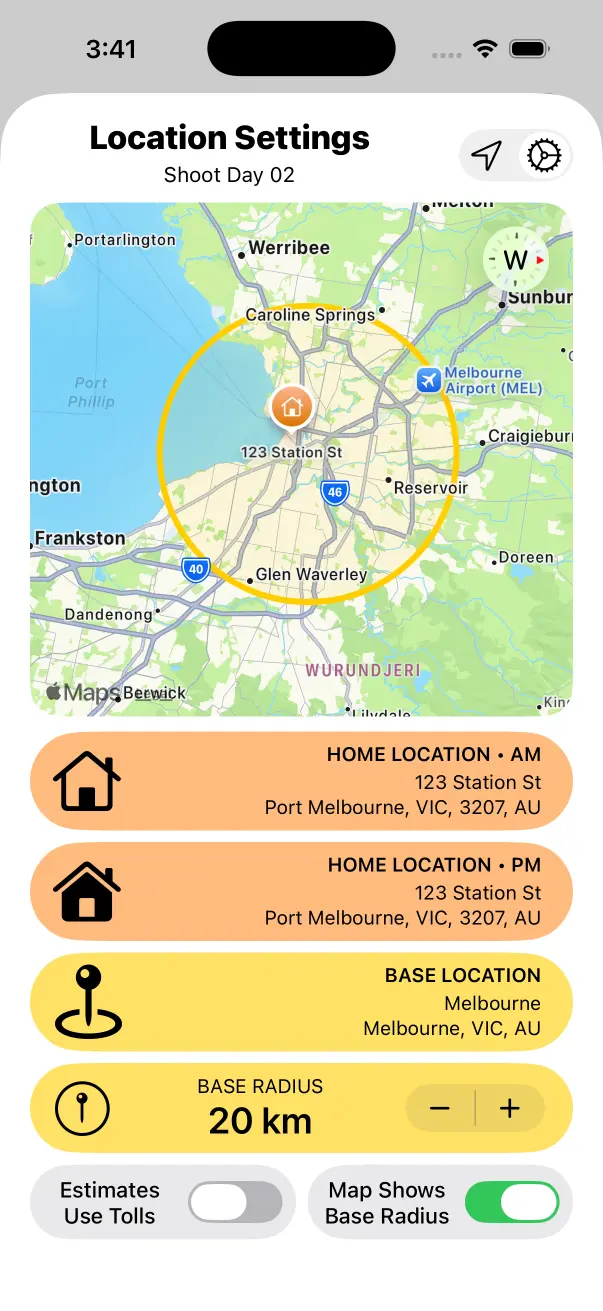
The Base Location is the main city where you work. Most places will charge mileage and travel time when you work a certain distance outside of the Base Location.
In Melbourne, Australia we use a 20km Radius from Melbourne City. My Base Location is set as per above and my Base Radius is set to 20km. Base Radius can be
Base Radius can be changed from day-to-day. Tap and Hold and select Set As Default if you are moving onto a new job that uses a different Base Radius, any Work Days you create after this will use this New Default.
Add Location
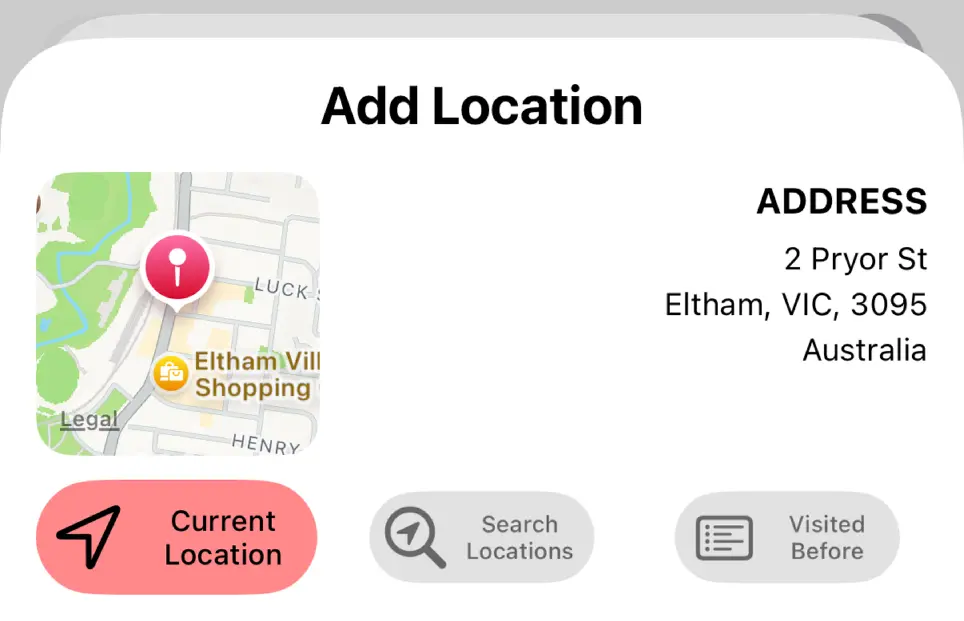
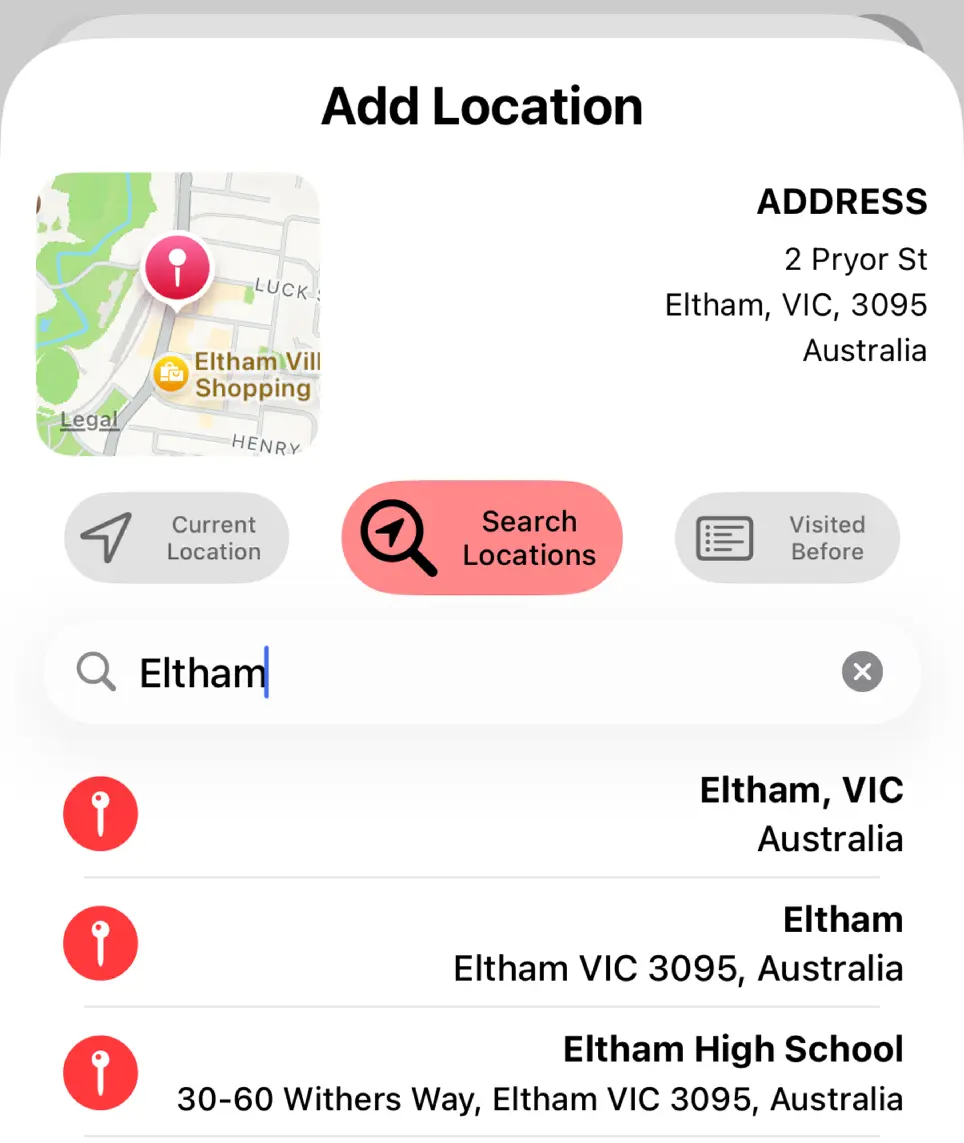
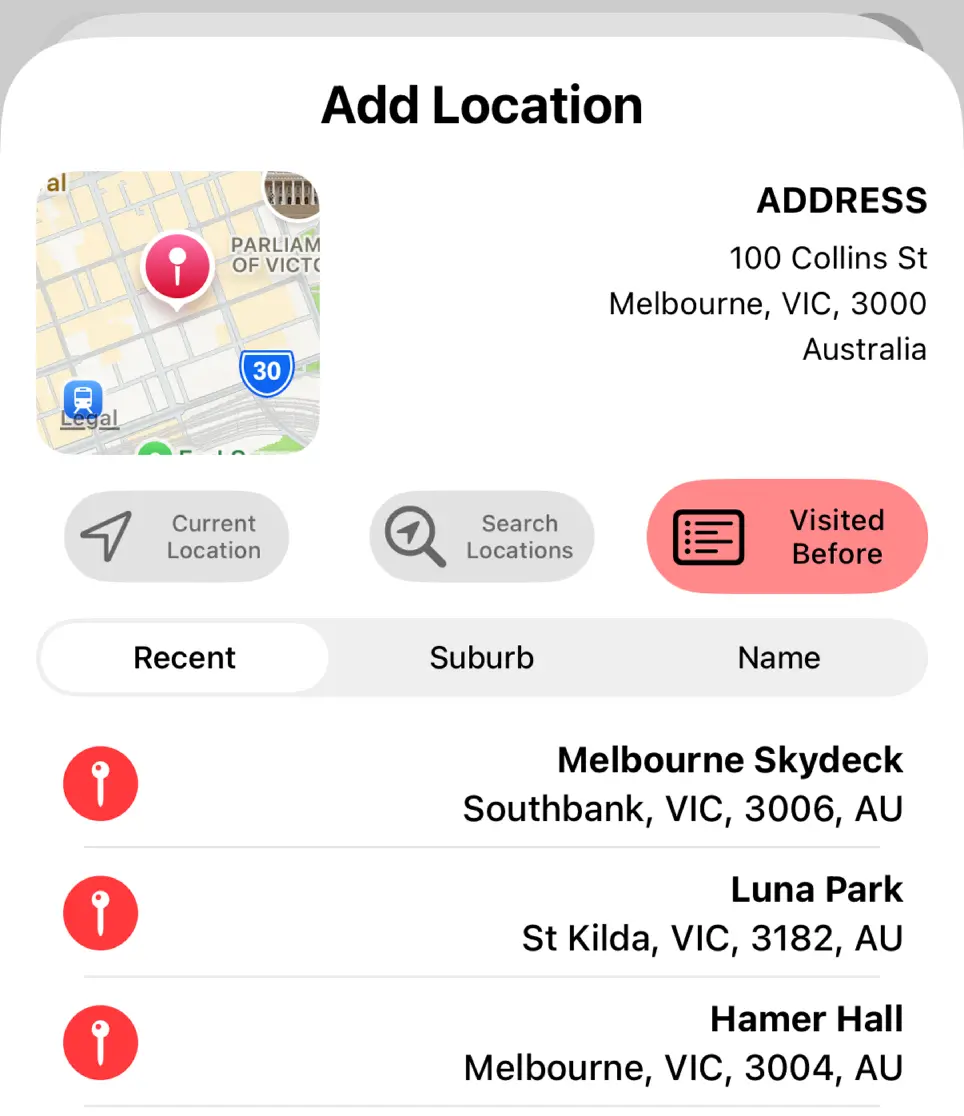
From the Location Summary Screen, tap Add Location. This will open the Add Location Screen. There are three different ways to add a location:
Current Location
This will use your current location based on your device’s GPS. This requires Location Permissions from iOS in order to work. Whenever the Add Location Screen shows this will be used as a default. This is handy if you are adding a location while you’re on-set.
Search Locations
Type in an address and relevant locations will display in the list. Tap the location in the list to select it. This is the easiest way to add locations in advance.
Visited Before
Select from a list of locations that you have visted before. If you find yourself working in the same location week after week, this is the fastest way to log it.
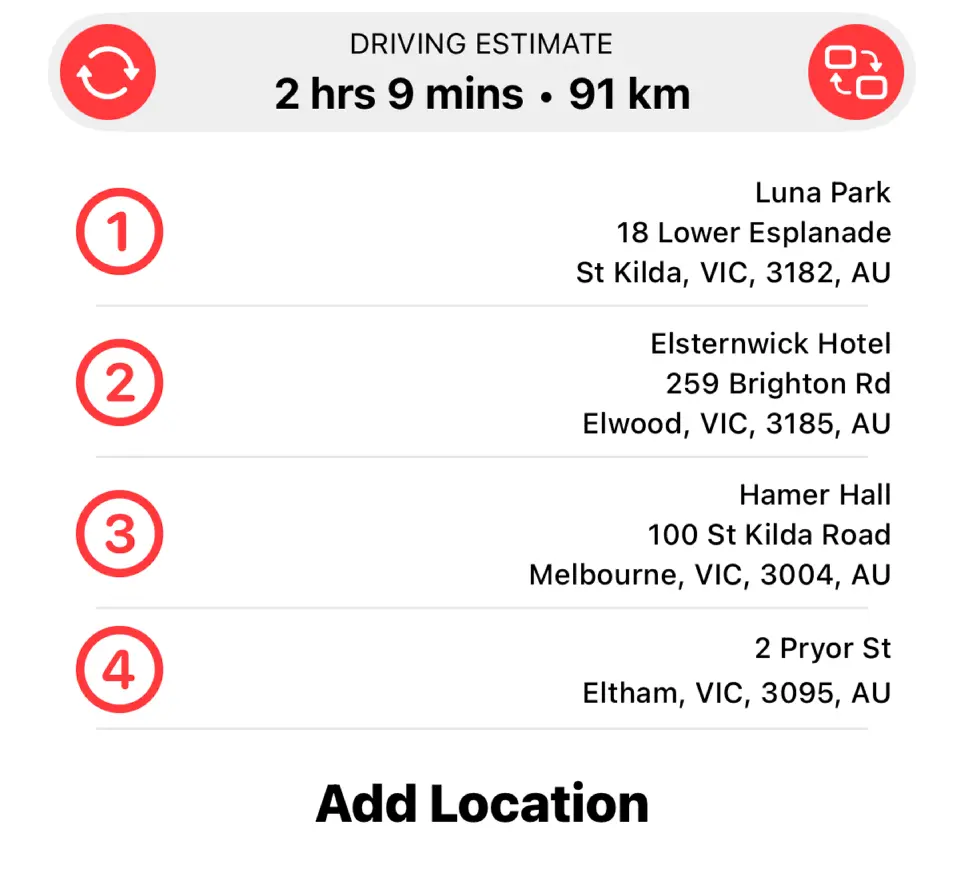
Location List
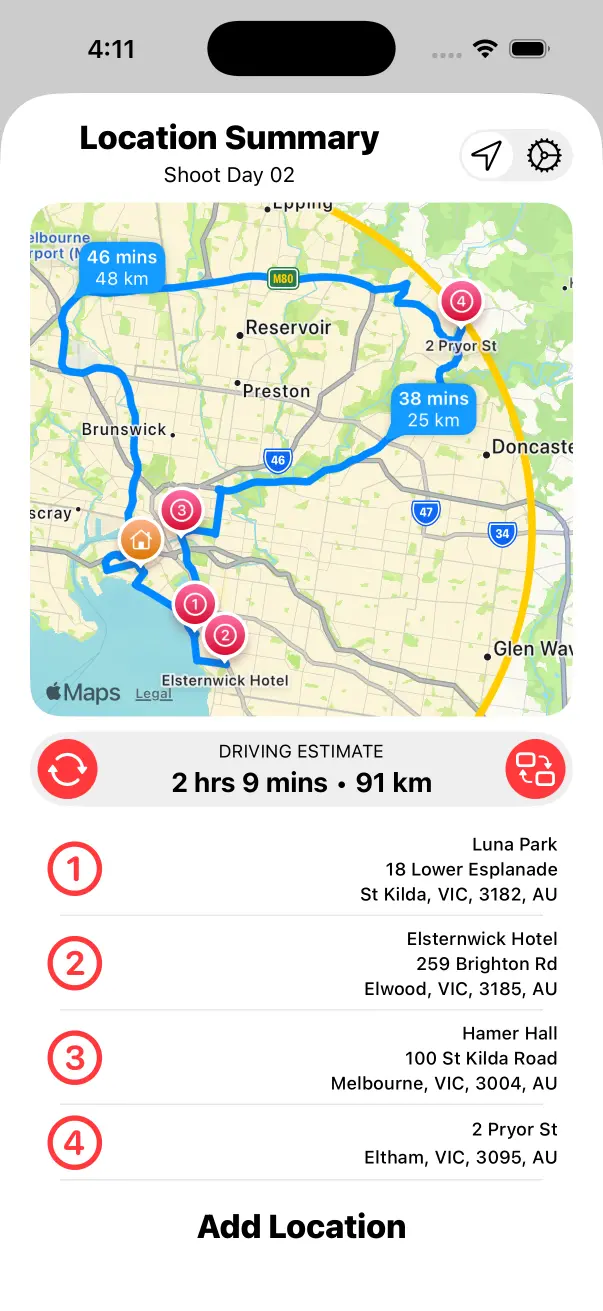
Once you have added all of the locations for a Work Day you will see them as a list in the Location Summary.
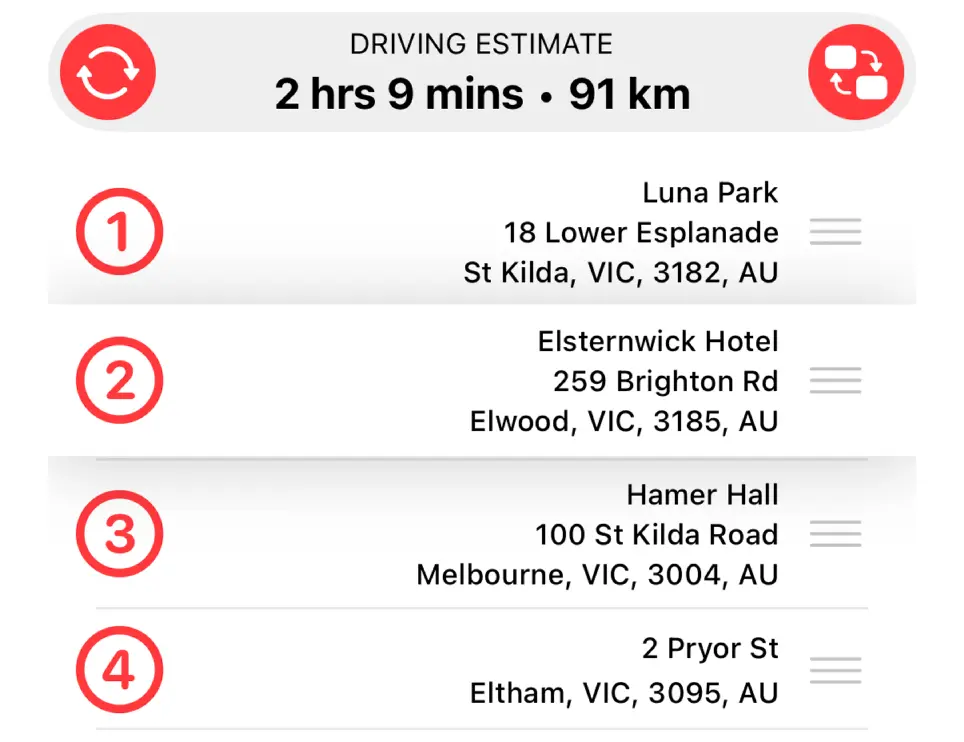
Reorder Locations
Tap the Reorder Button to the right of Driving Estimates if you need to reorder locations. You may have entered them in the incorrect order or shooting plans may have changed.
Driving Estimate
Crew Call will calculate a Driving Estimate for the locations you travelled to during the Work Day. It will navigate from Home AM → Location 01 → Other Logged Locations → Home PM. The driving route will be drawn on the map as you can see below.
Driving Estimates will calculate a Duration and Distance. Home AM → Location 01 will take your Call Time into consideration as this impacts traffic. Last Location → Home PM will take your Wrap Time into consideration in the same way.
Estimates may vary depending on the route taken. If you have Estimates Use Tolls enabled, Duration and Distance may be shorter as toll routes are typically faster and shorter.
Navigate to Locations
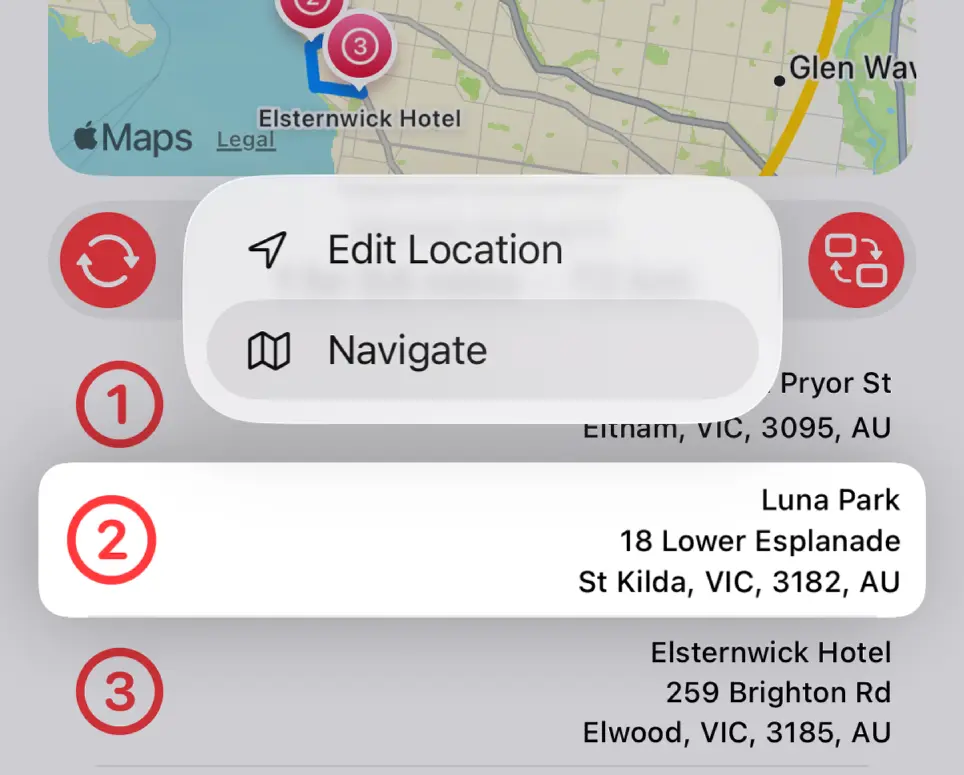
Tap and Hold on a location in the Location Summary Screen and select Navigate.
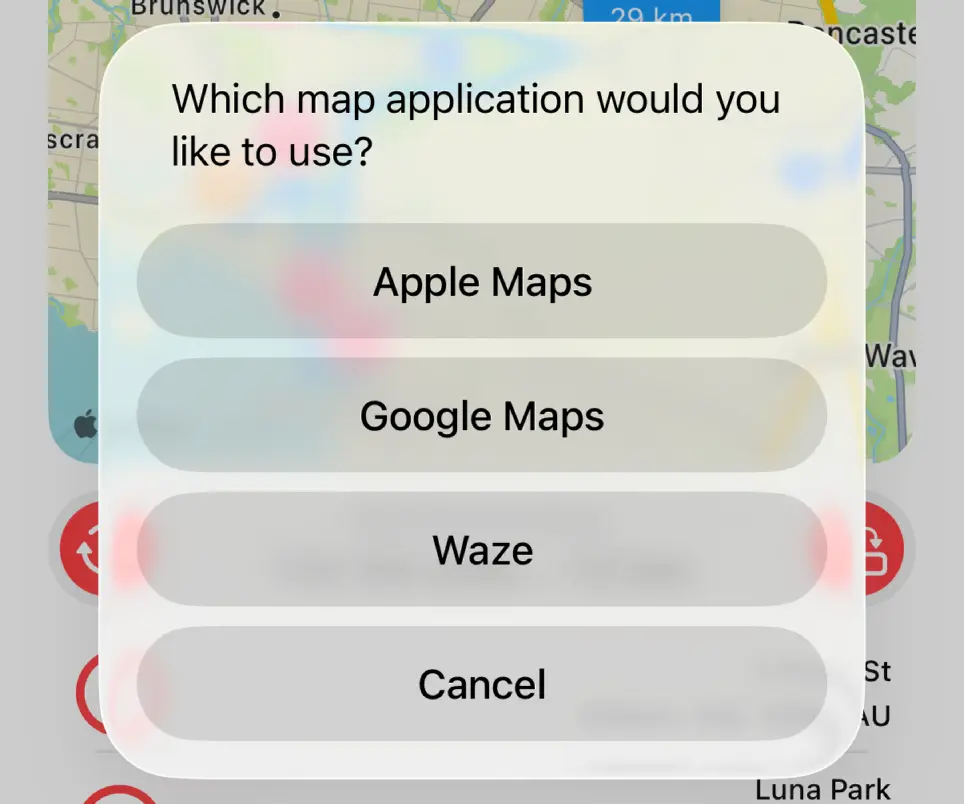
The first time you use this feature you will be asked to choose a Preferred Map Application.
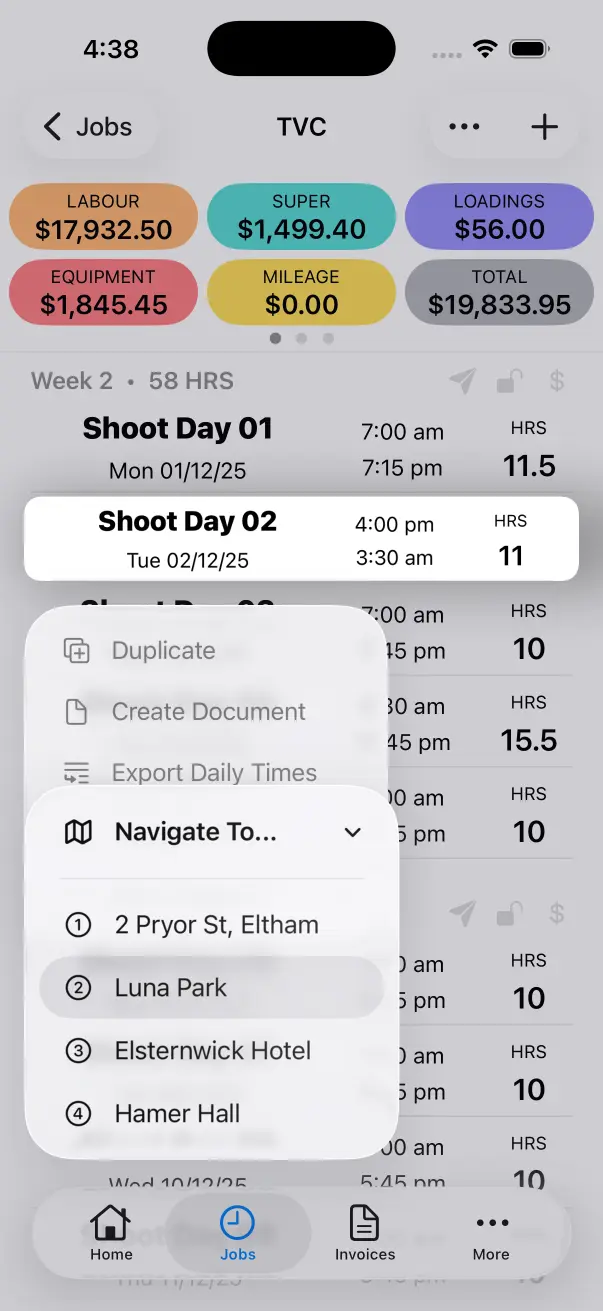
You can also navigate to locations from the Work Day List. Tap and Hold on a Work Day and select Navigate To… → Location. The Navigate To… option will only be visible is a Work Day has logged locations.