Mileage
Summary and Rate
Mileage Summary is used to Add Mileage.
Mileage Rate is used to modify the dollar amount charged per KM or Mile.
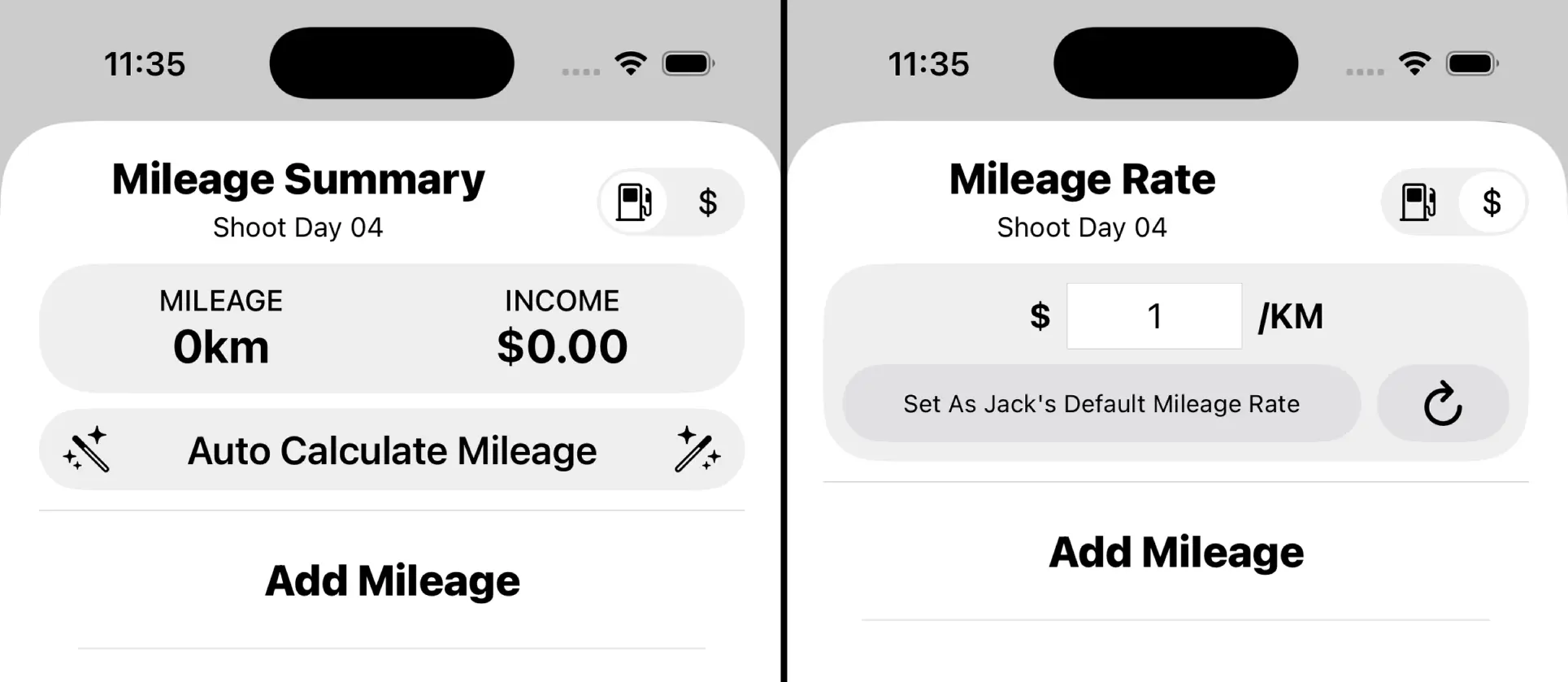
Add Mileage
Tap ‘Add Mileage’
Tap Add Mileage in the Mileage List and you’ll be presented with the Mileage Popup.
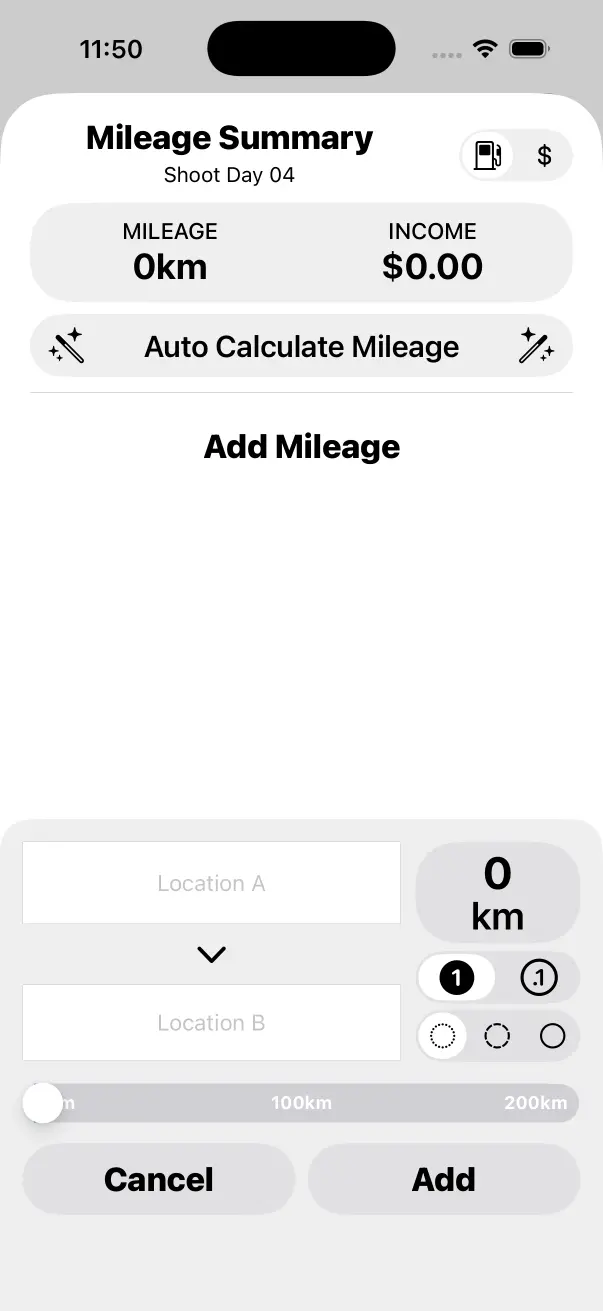
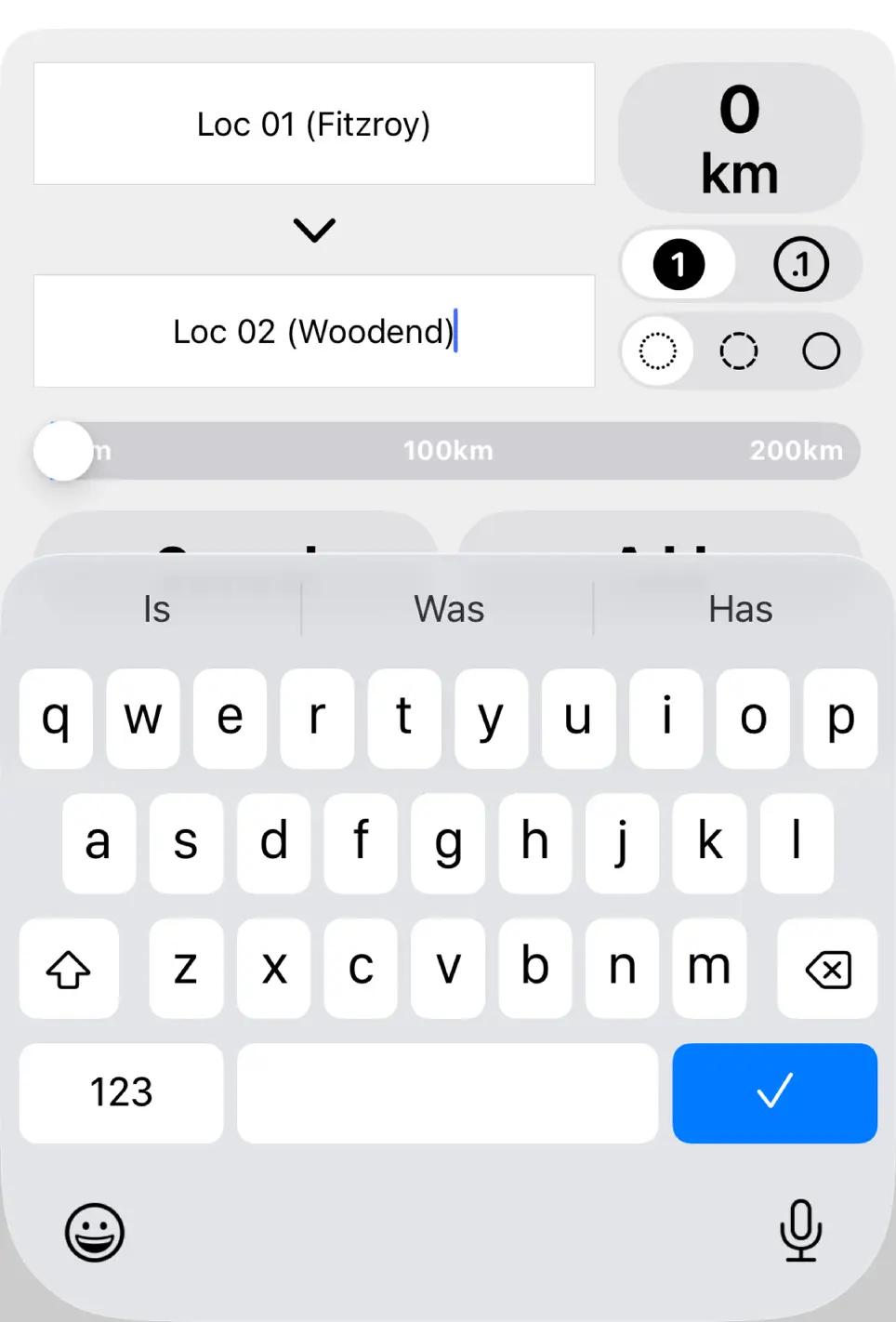
Enter Your Locations
Enter your Start Location and End Location using the text fields.
Enter Chargeable Distance
Use the Mileage Slider to enter your Chargeable Distance. Slide to change values quickly. Tap to the left/right to move in smaller increments.
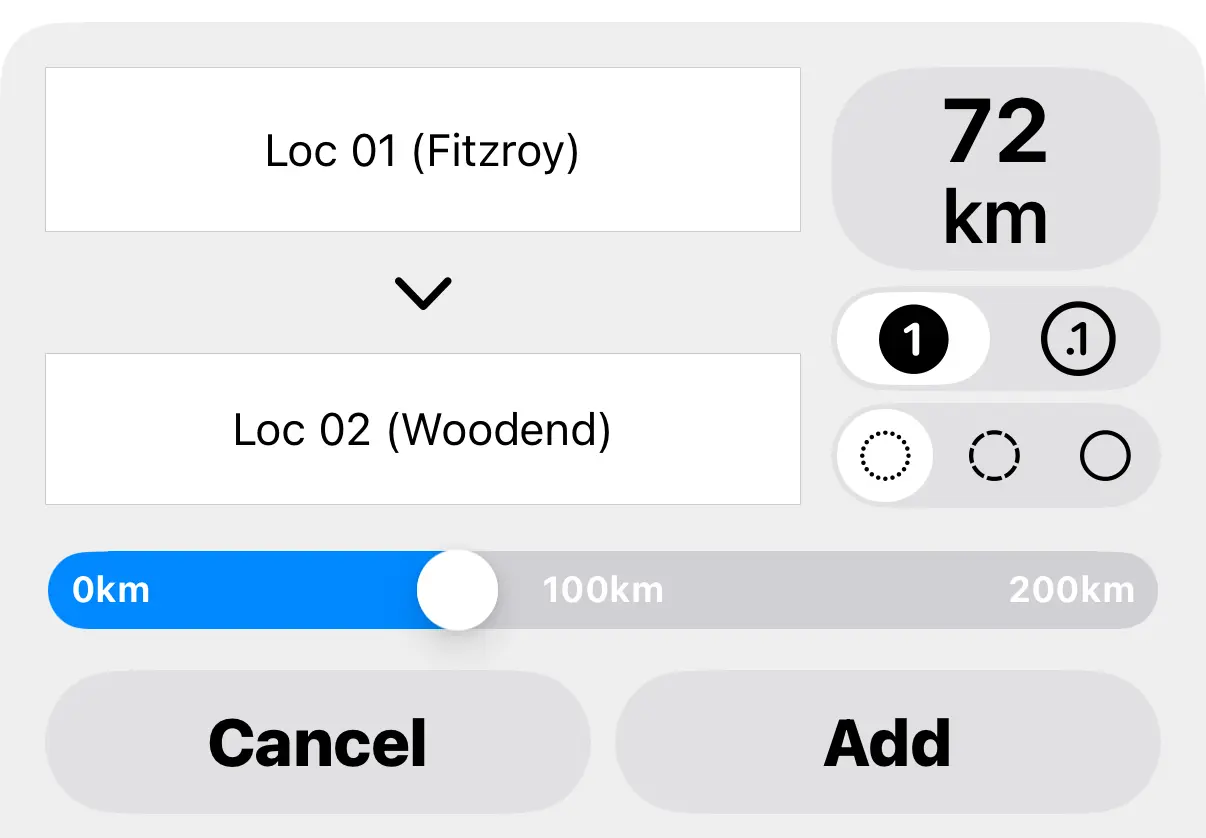
Tap the ‘Add Button’
Tap the Add Button and the Mileage will be added to the Mileage List.
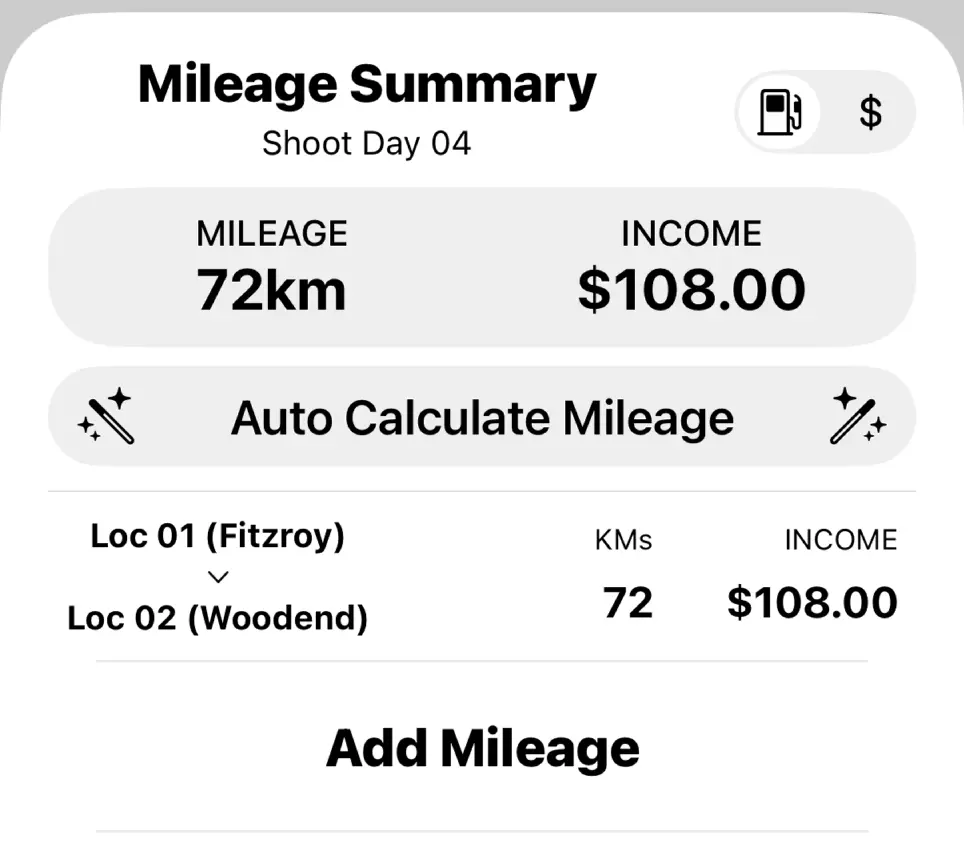
Mileage Distance Options
When you are manually editing the Mileage Distance you have some options to make entering the precise value easier.
Distance Increment
Change between 1km / 0.1km increments. The Mileage Slider will use the selected increment. When using Miles the increment will be 1mi / 0.1mi.

Distance Range
Change the range of the Mileage Slider.
Small is 0km - 200km.
Medium is 200km - 500km.
Large is 500km - 1000km.

When using Miles the ranges will use Miles instead of KMs.
Edit Mileage
Tap Existing Mileage in the Mileage List to edit it. The process is the same as Adding Mileage. Make sure you tap the Save Button when you are finished making changes.
Auto Calculate Mileage
If you use the Location Features you will be able to take advantage of Auto Calculate Mileage. This will check each Location that you have logged and assess if it is outside of the Base Radius. If it falls outside of the Base Radius it will calculate the Chargeable Mileage for that location.
All you need to do to use this feature is:
- Add a Base Location
- Log Locations
- Tap Auto Calculate Mileage

It will take a moment to calculate mileage. An internet connection is required.

When finished you will have Chargeable Mileage for all location moves that are outside of the Base Radius for the Selected Work Day.
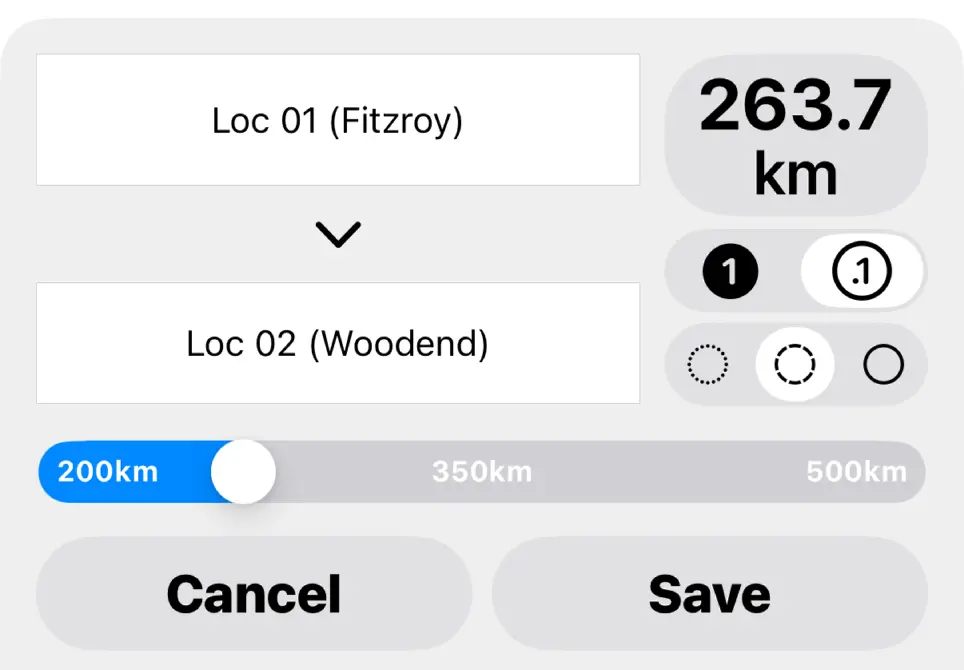
The distance is calculated by navigating from your Base Location to the Logged Location, the Base Radius will be subtracted from this distance.
In the example below, the distance from Melbourne to Woodend is 72km and our Base Radius is 20km, thus the Chargeable Mileage is 52km (72km - 20km).
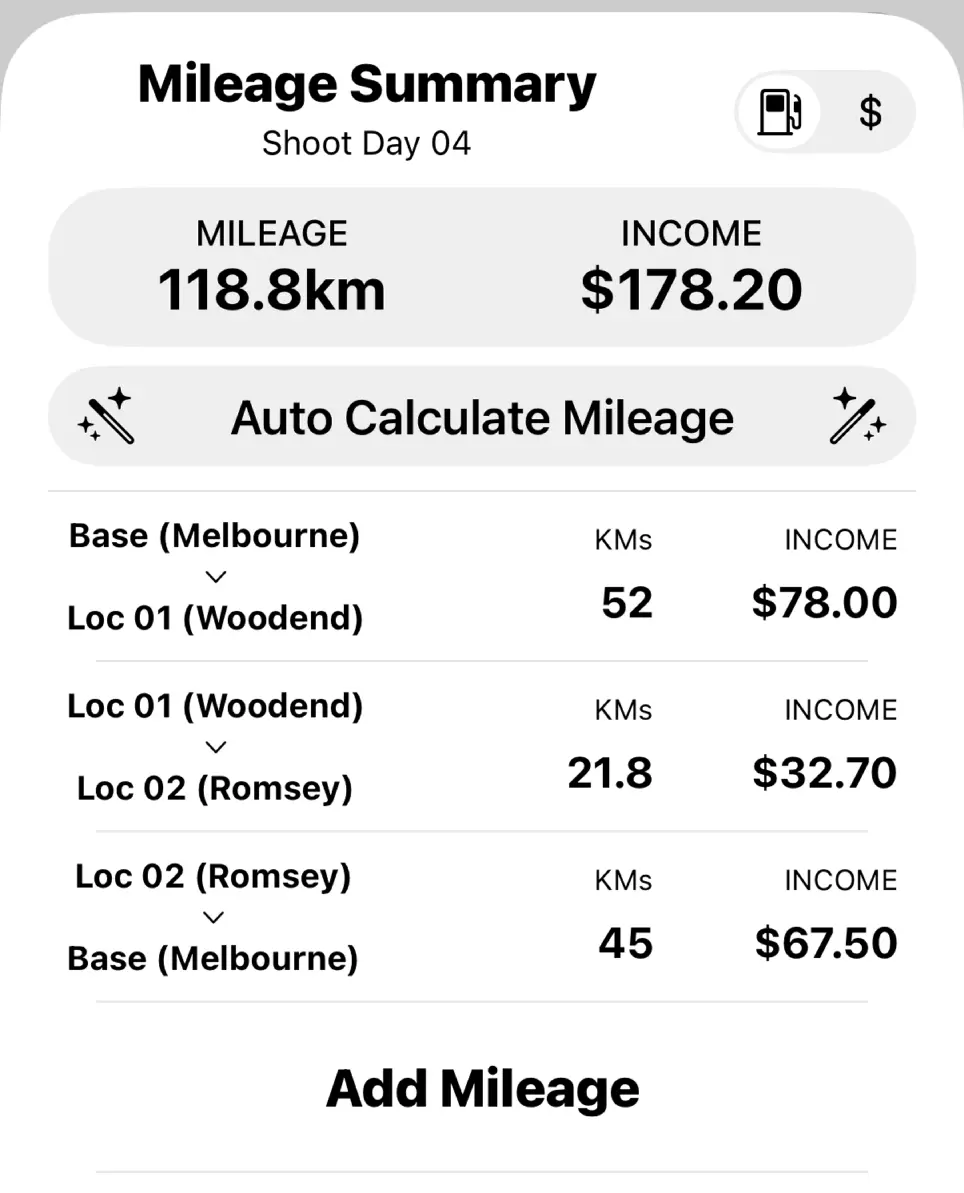
If you exit the Base Radius and travel to various locations outside of the radius, Crew Call will calculate the distance from Location 01 → Location 02. Each location is assessed independantly to determine if it is outside of the Base Radius.
Away Jobs
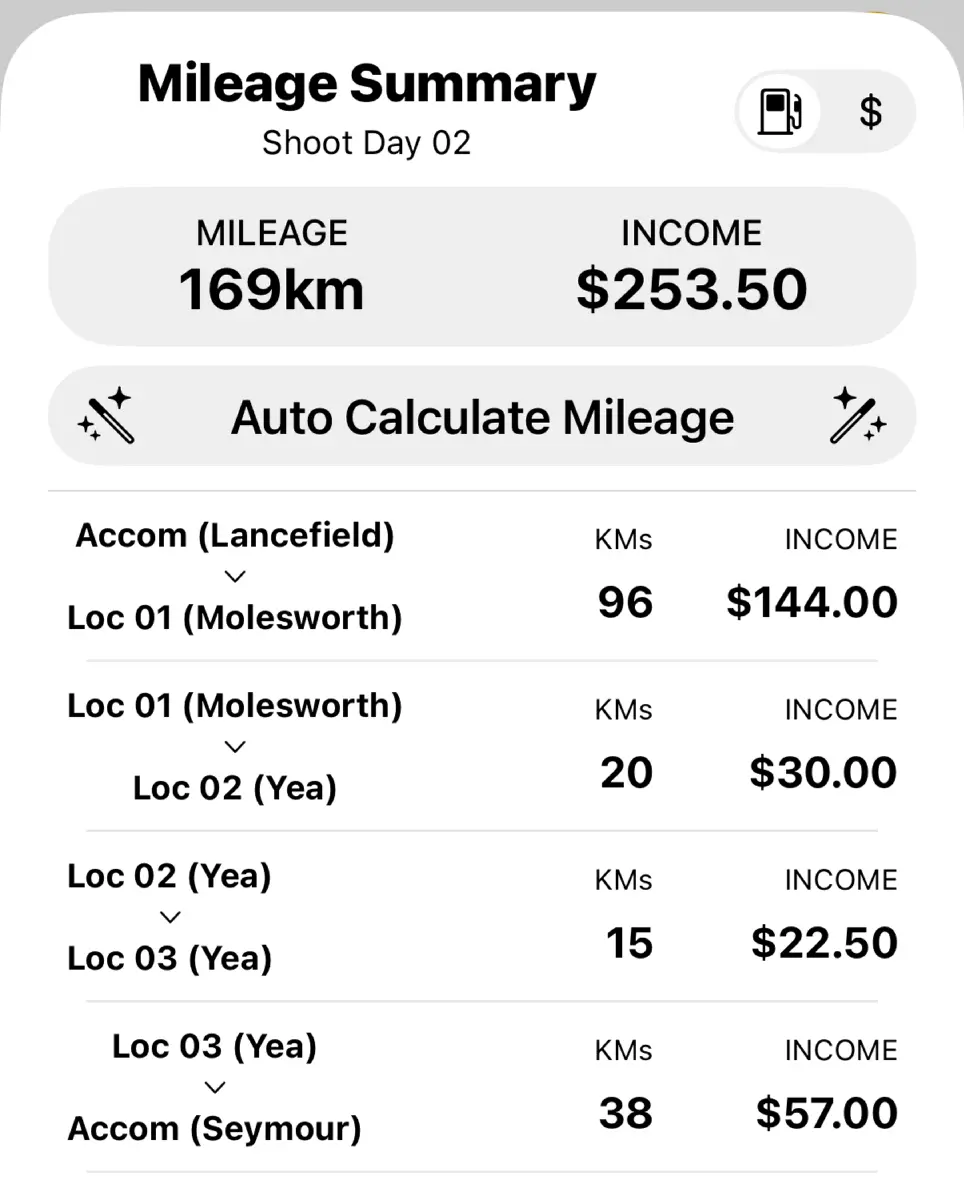
When you’re on an away job it’s typical to charge mileage back to your accomodation. If you set your Home Locations, Crew Call will know you’re on an away job and Chargeable Mileage will be calculated automatically.
If the Home Locations logged for a Work Day differ from your Default Home Location the system will assume you’re doing an away job.
Home AM and Home PM are calculated independently so this functionality will work when you leave for an away job and when you return home from an away job.
Disclaimer
Just a quick reminder to always double check the Chargeable Mileage calculated by Crew Call before you bill production.
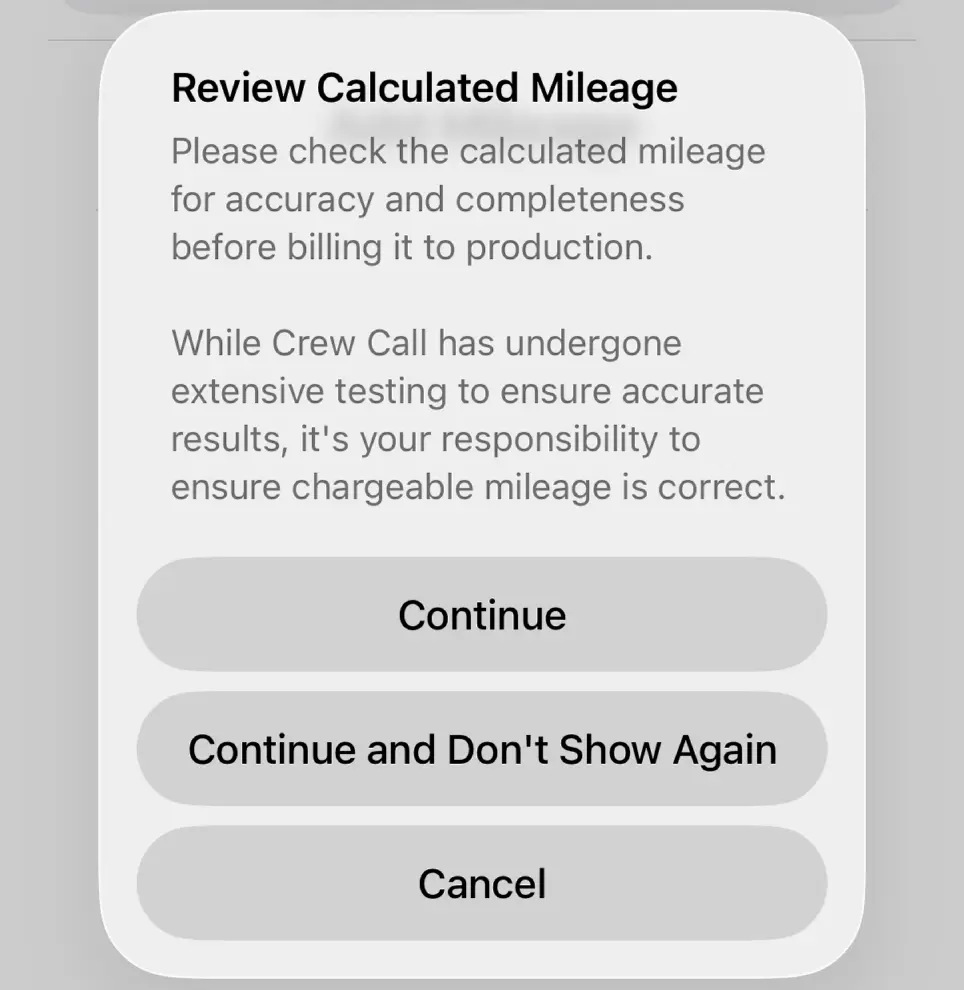
Any mileage calculated using Auto Calculate Mileage can be edited.
Mileage Rate
Tap the Dollar Button in the top right to show the Mileage Rate Screen.
The Mileage Rate can be changed for each Work Day, this is useful if you use different vehicles throughout a job. You may use a van one day and charge $1.50/km and then use a truck the next day and charge $2.50/km.
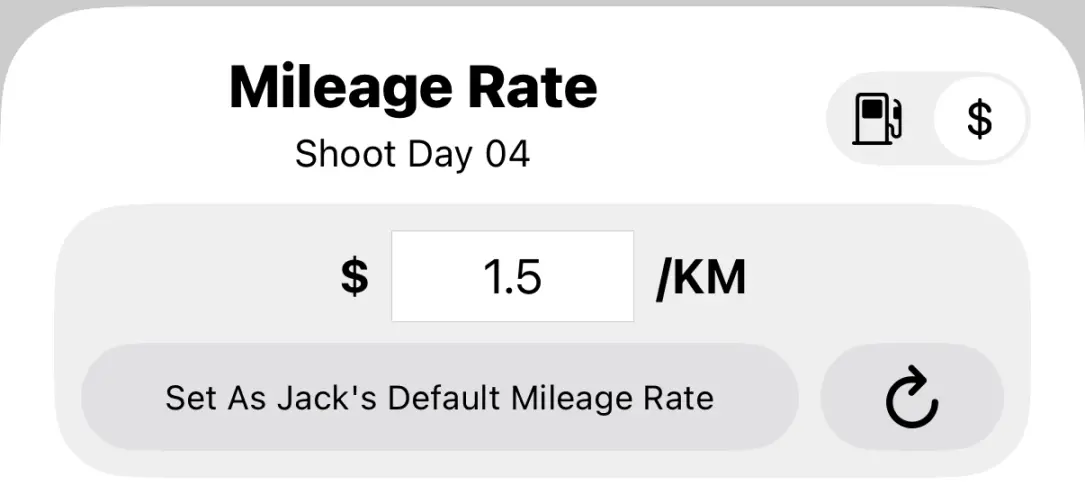
Tap the Set Default Button to set the Default Mileage Rate for the current Crew Member. New Work Days that are created from this point forward will use this value as the Mileage Rate. It’s best to set this up before creating too many Work Days so the $/km is always what you expect it to be.
