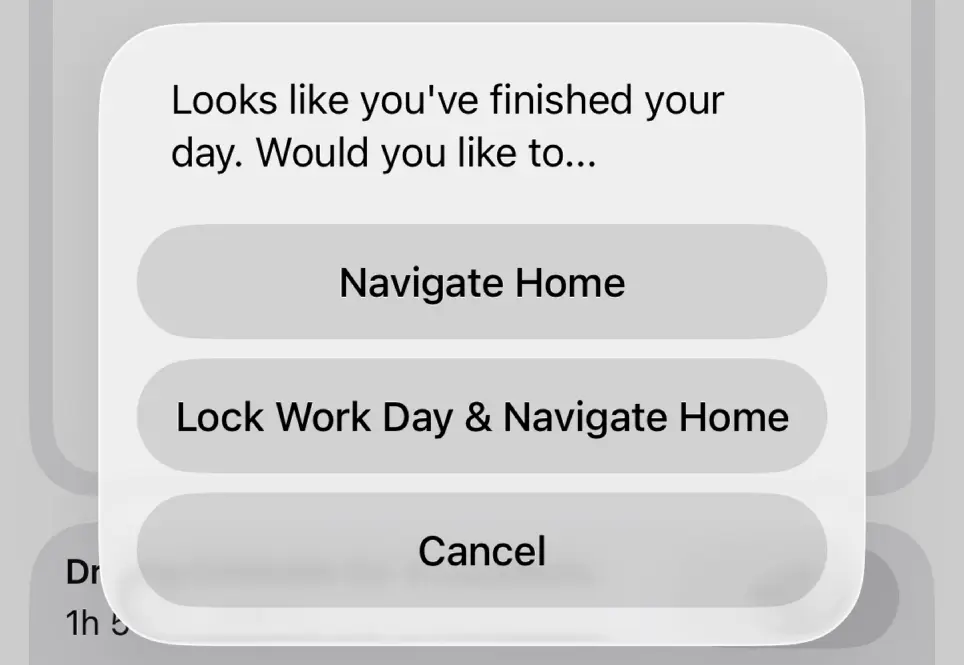
Notes
Notes
Use the Notes Section to keep track of anything that may come up. Notes are tied to a specific Work Day and can be easily checked later on.
When creating PDF Reports or Timesheets you can choose if these Work Day Notes are included or not. It’s up to you if you make these notes production friendly or if they contain things you want to keep to yourself.
Logging Locations
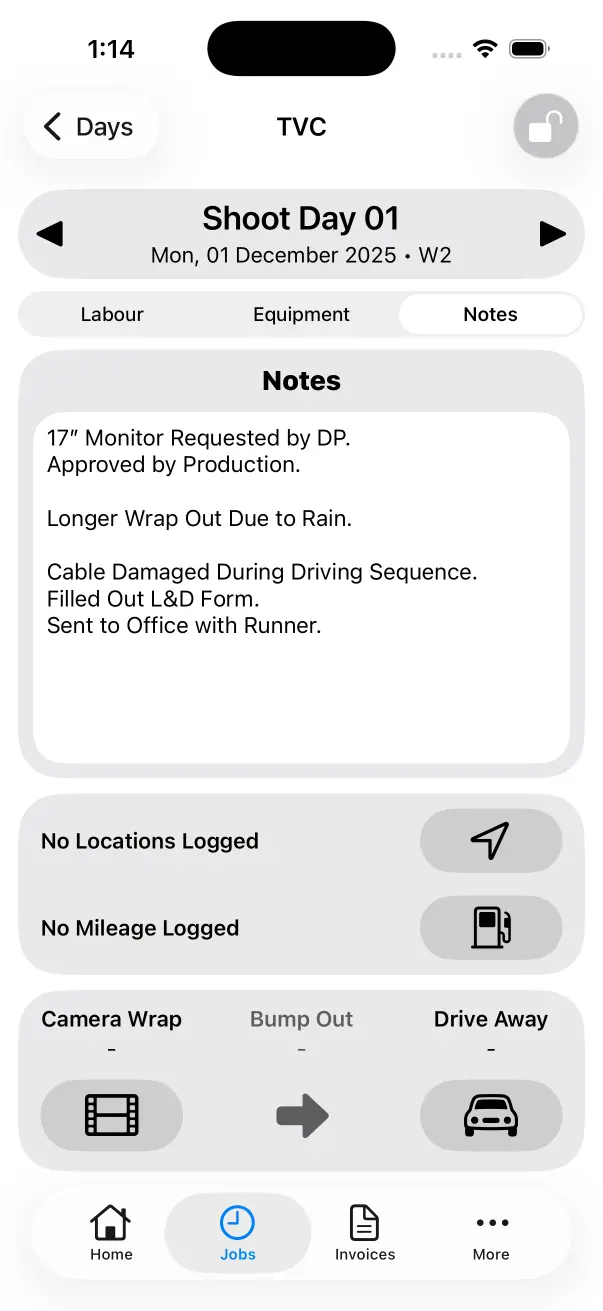
Add Locations to a Work Day to keep track of where you are shooting. When you have location moves, Crew Call can help you navigate by opening the Next Location in your Preferred Map Application.
Logged Locations will automatically calculate Driving Estimates which can be exported as a Driving Logbook for tax purposes.
When using Calendar Sync, the first Logged Location will be added to the corresponding Calendar Event in your iOS or Google Calendar.
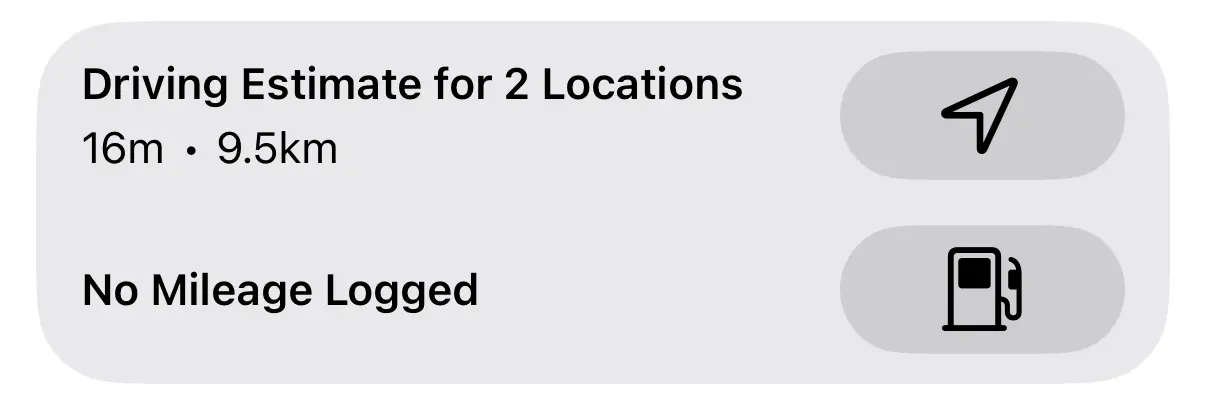
Learn more about Logging Locations:
Logging Chargeable Mileage
Milage is used for Paid KMs or Miles that you charge to production. Mileage can be logged manually or you can use the Auto Calculate Mileage feature.
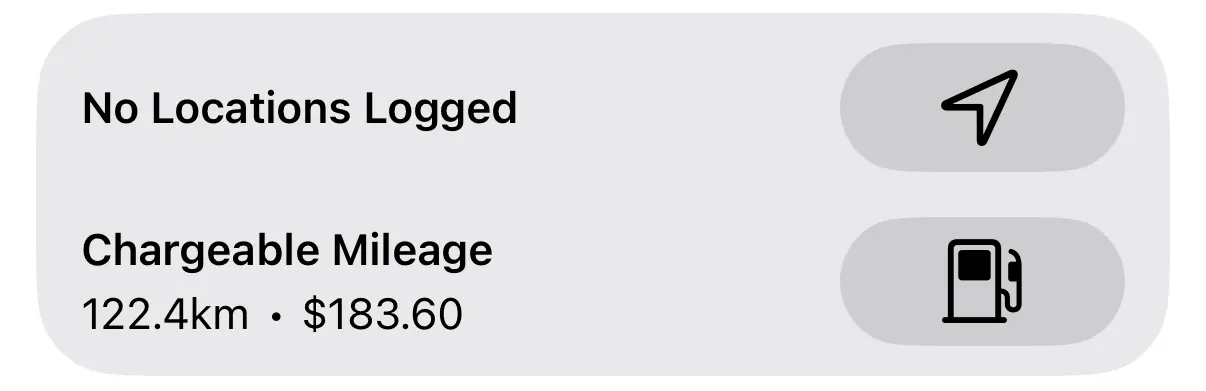
Learn more about Chargeable Mileage:
Camera Wrap
This can be used when you want to record the exact time of Camera Wrap. This can be helpful infomation to have on hand when discussing things with production in the future.
Tap the Camera Wrap Button to log the current time as Camera Wrap.

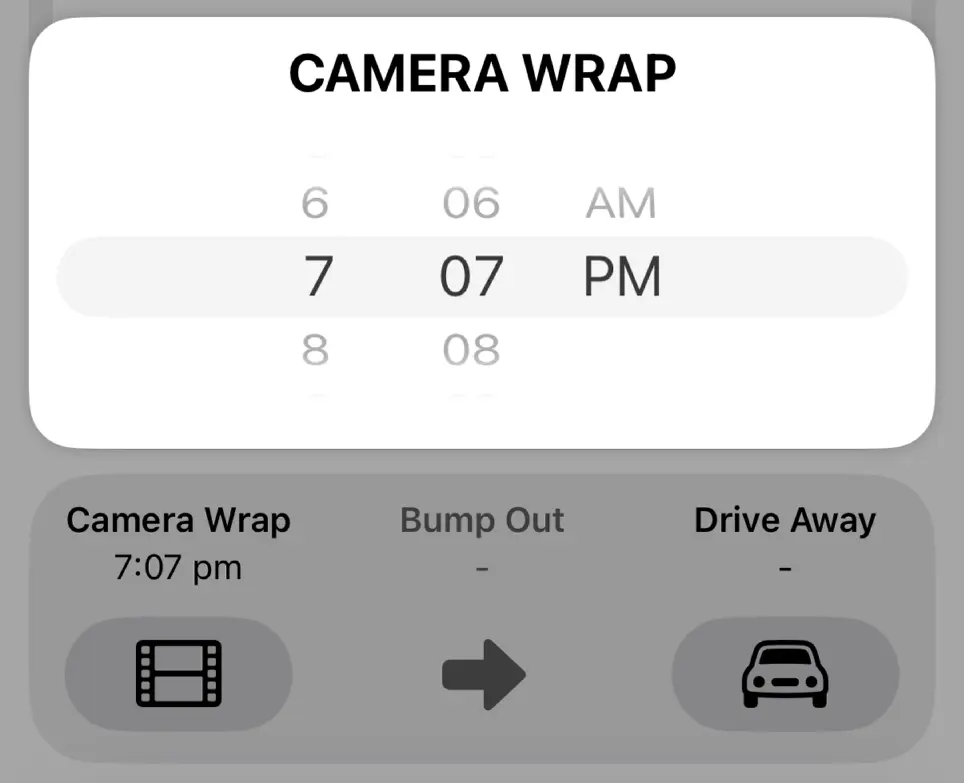
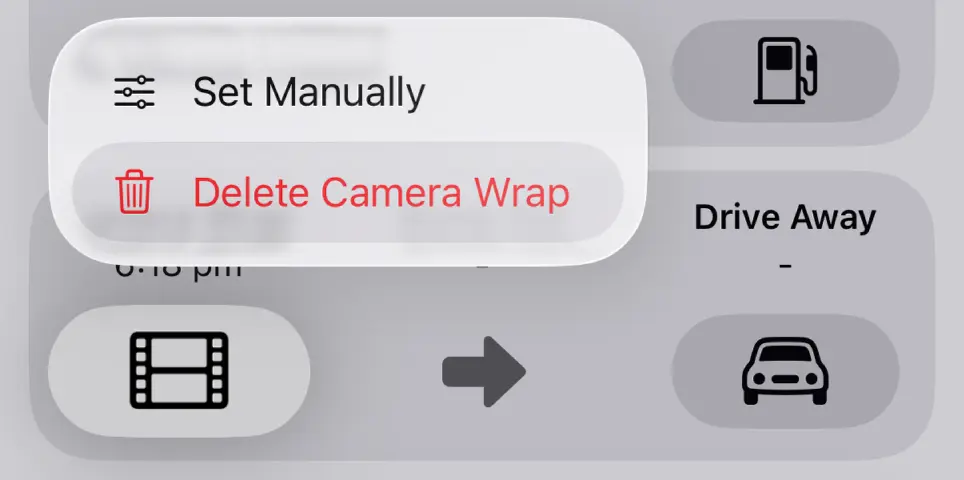
Tap and Hold the Camera Wrap Button and select Set Manually to dial in the exact time.
Tap and Hold the Camera Wrap Button and select Delete Camera Wrap to remove it.
Drive Away
Often the Drive Away Time and the Wrap Time will differ slightly as crew typically round up their Wrap Time to the nearest 6/15 Minutes. Drive Away allows you to record your actual drive away time for future reference.
When you log Camera Wrap and Drive Away you Bump Out time is calculated automatically. This can useful to know how long it took you to wrap out of a location.
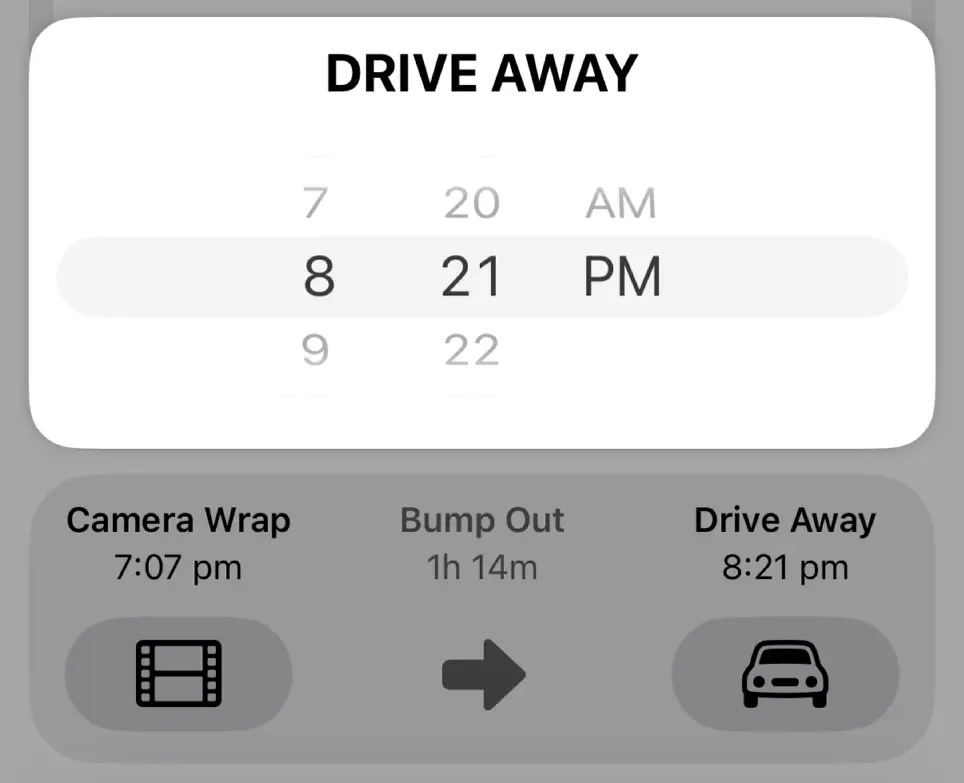
Drive Away works the exact same way as Camera Wrap, please refer to the information above.
When you tap Drive Away, you will be presented with some options if you have set a Home Location. Lock Work Day & Navigate Home is used most often as it will sign off the Work Day and open your Preferred Map Application and start navigating you home.